Website Navigation in Sitely
Understanding Your Navigation Options and When to Use Each One
When building a website in Sitely, navigation is not just about adding a menu - it’s about choosing the right structural method for how your site behaves.
Sitely offers three main navigation approaches:
1. The Built-In Menu element
2. Block Visibility navigation
3. Popup-Based navigation (Modal, Fixed in Window, Fixed on Canvas)
With the exception of the Built-In Menu and simple block visibility toggling, most advanced navigation systems in Sitely are created using the Popup tool.
Understanding when to use each method is key to building reliable and professional navigation.
⸻
- The Built-In Menu Element
Best for Automatic, Structured Navigation
The Built-In Menu automatically creates menu items based on the Pages panel.
By default:
• Each page becomes a menu item.
• Menu order follows the page order.
• Changes in the Pages panel update the menu automatically.
This makes it the easiest and most maintainable navigation system in Sitely.
⸻
Customising the Built-In Menu
Although automatic, it can be customised in several ways.
Editing Menu Labels
You can change how a page name appears in the menu without renaming the page itself.
Useful when:
• Page names are long
• You want marketing-friendly wording
• You need shorter text for spacing
⸻
Adding Manual Links
You can insert menu items that don’t correspond to pages.
Examples:
• External websites
• Booking systems
• Downloadable PDFs
• Page anchors
This creates a hybrid structure (automatic + manual items).
⸻
Creating Submenus
You can create dropdown-style submenus to organise related pages.
Example:
Services
– Consulting
– Training
– Support
Submenus are helpful when:
• You have many sections
• You want clearer hierarchy
Avoid going deeper than two levels - it reduces usability.
⸻
Reordering Menu Items
Items can be moved up or down in the Items list in the Style panel.
Navigation order matters. Place key sections strategically.
⸻
When to Use the Built-In Menu
Use it when:
• You want automatic updates
• The site structure is traditional
• Maintainability is important
• You don’t need complex animation
Avoid it if you need highly custom layouts or advanced animation effects.
⸻
- Navigation Using Block Visibility
Layout-Dependent Dropdowns and Mega Menus
Block visibility uses layout blocks that are:
• Positioned within the page
• Hidden by default
• Revealed on hover or click
This method is often used for dropdown or mega menus.
⸻
How It Works
1. Create a layout block under the header.
2. Add grouped navigation elements.
3. Set the block to hidden.
4. Reveal it using a hover or click trigger.
The navigation remains part of the page structure.
⸻
Advantages
• Simple setup
• Naturally aligned with header
• Good for traditional dropdown menus
⸻
Important Limitation
Block visibility is tied to layout position.
If the user scrolls down the page and then triggers the navigation, the revealed block may appear off-screen (because it exists near the top of the layout).
⸻
Why This Can Be a Problem with Sticky Headers
If your site uses a sticky (fixed in window) header:
• The header stays visible while scrolling.
• The visibility block does not move with it.
• Triggering the menu further down the page may reveal content that is no longer aligned with the visible navigation.
For sticky navigation layouts, block visibility is often not ideal.
⸻
When to Use Block Visibility
Use it when:
• Pages are short
• The navigation is near the top
• The site does not use sticky headers
• You want a simple dropdown structure
⸻
- Popup-Based Navigation
The Foundation of Advanced Navigation in Sitely
Most advanced navigation systems in Sitely are created using the Popup tool.
When creating a popup, you can designate it as:
• Modal
• Fixed in Window
• Fixed on Canvas
Each option affects positioning, scrolling behaviour, and animation.
Popup navigation is not tied to layout blocks, making it more flexible and reliable - especially with sticky headers.
⸻
Popup Types Explained
⸻
Modal Popup
Behaviour:
• Appears centered
• Blocks interaction with the background
• Requires closing before continuing
Best for:
• Mobile full-screen menus
• Focused navigation
• Landing pages
• Minimalist designs
Use when you want users to concentrate on navigation.
⸻
Fixed in Window Popup
Behaviour:
• Positioned relative to the browser window
• Remains visible while scrolling
Best for:
• Sticky headers
• Slide-in side menus
• Persistent navigation panels
• Modern mobile navigation
This is often the best choice when using sticky headers.
⸻
Fixed on Canvas Popup
Behaviour:
• Positioned relative to the layout grid
• Scrolls with the page
• Can still be animated
Best for:
• Structured layouts
• Section-based navigation
• Controlled animation within layout
⸻
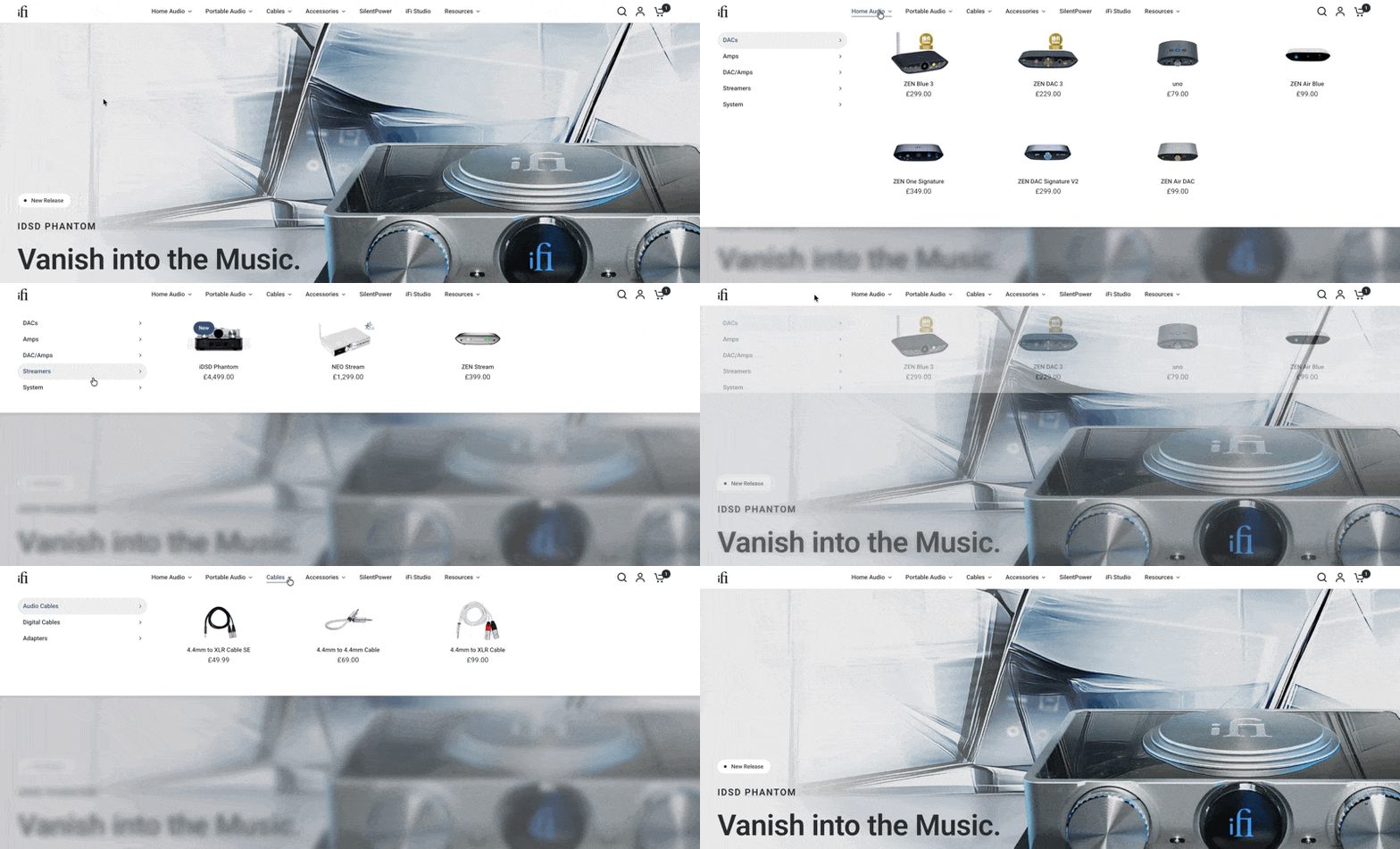
Popup-Based Mega Menus
Mega menus can also be built using popups instead of block visibility.
Advantages over block visibility:
• Not tied to layout block position
• Works reliably with sticky headers
• Can appear anywhere on screen
• Offers more animation options
• Visible regardless of scroll position
For modern websites with persistent headers, popup-based mega menus are usually the better choice.
⸻
Quick Comparison
Built-In Menu
• Automatic
• Page-structure based
• Low maintenance
• Limited advanced styling
Block Visibility
• Layout-dependent
• Simple dropdowns
• Can fail with sticky headers
Popup-Based Navigation
• Layout-independent
• Scroll-independent (if fixed in window)
• Supports animation
• Most flexible option
⸻
Choosing the Right Navigation Method
Ask yourself:
Do I want automatic page-based navigation?
→ Use Built-In Menu
Does my site use a sticky header?
→ Use Popup-Based Navigation
Do I need animated panels or slide menus?
→ Use Popup-Based Navigation
Is the layout simple and near the top of the page?
→ Block Visibility may be sufficient
⸻
Bottom Line
In Sitely, navigation systems fall into three structural categories:
1. Automatic (Built-In Menu)
2. Layout-dependent (Block Visibility)
3. Layout-independent (Popup-Based Navigation)
The best choice depends on:
• Whether the header is sticky
• Whether animation is required
• Whether the navigation must work independently of scroll position
• The complexity of the site structure
Popup-based navigation provides the greatest flexibility and is generally the preferred solution for modern layouts - especially when sticky headers are used.
Ultimately, it’s not about limiting choices or forcing people into a preferred navigational structure. It’s more about knowing how your users are expecting to interact with your website, and using the most appropriate tools to meet those expectations.