My pdf pages aren’t visible as a page in my Sparkle site. Since I have multiple pdf’s that I would like to display in Sparkle, this is a serious problem. Please help!
@ProperLady, Sorry but could you further elaborate please… a screenshot maybe.
A hint… A website is viewed on so many different screen sizes nowadays ranging from mobile all the way up to HD TV so embedded pdfs will work AOK on desktop and TV, but on tablet it becomes questionable and on mobile it is just an outright pain to use unless the pdf has been optimised for mobile.
Sparkle has options and in the end linking a pdf is a far better call than embedding it for the user.
2 Likes
Although web-bowsers can display PDF’s, these file types are not really good substitutes for HTML pages. Normally, a PDF file, if attached and linked to your web page will open in a new tab or window. This is more of a convenience thing, so that users get a full window of content that can be viewed or saved.
That said, it is sometimes required to have a PDF document display within an HTML web page. This allows the PDF to be displayed in a fixed size window. Furthermore, most modern browsers will recognise an embedded PDF and offer up some useful tools to the user when a mouse pointer is hovered over the PDF. These will typically include zoom and download options. Where the display window may be shorter than the PDF document, there will be a scroll function added to the window to allow the document to be scrolled independently of the web page. This is particularly useful for embedding multi-page PDF’s.
To do this in Sparkle, you would add the code widget to the page, and then add a piece of iFrame code into the widget. You repeat this for every document you want embedded. Here is an Example Page
In order to keep topics in the forum more related to the core functions of Sparkle, if you need information on how to generate the iFrame code, please feel free to PM me for specific instructions.
Hi @ProperLady,
by the sound of it, what you are trying to do is not something that is common on the web. PDF is its own file format, it’s not native to the web. Sparkle produces native HTML (and assorted supporting files), but doesn’t convert PDFs into HTML.
So your options are:
- you can link to the PDFs, say by dropping them into the Sparkle canvas. Most browsers have a built-in PDF viewer, but your users are kind of stuck in a non-native feeling medium
- you can copy/paste the original documents into Sparkle, and make one or more content pages for each PDF, that are native to Sparkle and to the web (you could copy/paste from the PDFs as well, but very often the text is somewhat scrambled in the PDF)
1 Like
Thank you for this excellent feedback. I will be using most of these ideas. And I may decide to convert some of them to images, since the visuals are more important than the text on those.
Please bear in mind that PDF page content can be read by search engines, whereas images cannot. Also images can be larger and less clear than PDF’s, so not always the best option to go for.Its all a bit of a trade-off one way or the other.
You’ll be fine with high resolution images. Google’s artificial intelligence algorithm can read the text in images. If you’re not making a document downloadable, JPG and PNG are best. Non animated SVG works when not surrounded by extensive artwork. Google can also read embedded Keynote presentations. Video, GIF, and ASVG not yet.
Hello,
The only way to do that is embedding it…
use the embed button and place this script (you have to upload your pdf in you site)
Modify the size accordingly.
<iframe src="URL" height="200" width="300"></iframe>
Apologies - i know i am somewhat late to this party, but i just wanna share my tip:
You also use the html embed tag to display a pdf file in a webpage:
<embed src="sample.pdf"
              type="application/pdf"
              width="100%"
              height="600px"
              />
• src – Specify the path of the external file to embed.
• type – Specify the media type of the embedded content.
• width – Specify the width of the embedded content.
• height – Specify the height of the embedded content.
• page=pagenum
Specifies a number (integer) of the page in the document. The document’s first page has a pagenum value of 1.
• zoom=scale
Sets the zoom and scroll factors, using float or integer values.
For example, a scale value of 100 indicates a zoom value of 100%.
• view=Fit
Set the view of the displayed page.
• scrollbar=1|0
Turns scrollbars on or off.
• toolbar=1|0
Turns the toolbar on or off.
• statusbar=1|0
Turns the status bar on or off.
• navpanes=1|0
Turns the navigation panes and tabs on or off.
You can specify multiple parameters in the URL.
Each parameter needs to be separated with either an ampersand ( & ) or a pound ( # ) character.
Actions are executed from left to right and later actions will override the previous actions.
Here are some examples
http://example.com/doc.pdf#Chapter5
http://example.com/doc.pdf#page=5
http://example.com/doc.pdf#page=3&zoom=200,250,100
http://example.com/doc.pdf#zoom=100
http://example.com/doc.pdf#page=72&view=fitH,100
2 Likes
Regular Phone Size On Any Display?
First let me thank all here.
Small phone sized PDFs,(with styled text and several links), are wanted. The hacks sound interesting but work flow sounds difficult to match the WYSIWYG.
May we get a complete copy-paste routine through Sitely interface?
Has anyone ever tried phone sized popups, including styles and links, that keep an equivalent format, size, styling and with links kept intact, even on a large screen?
Currently only the first few PDFs are linked on my page through “Download File”… I want it to display just the small sized PDF, not an entire external page. An exacting Popup, would help because image drops links.
Previous work-around:
Before I changed servers, I used to keep a separate folder with a 100+ pdfs as a separate folder, outside the Sitely folder on same server, and used “Go to external link” for each one. The same domain / separate PDF folder/ PDF name.
This hack seemed to function online, and appeared functional on other phones or PCs, but not with SEO or something. Not sure what.
PS- update- I have been web searching for a solution like this, as this is all about common sense on a basic webpage functions, point, click, see excerpt with 3 specific links, click further steps. There appears to be some agreement gotten from ai replies. I’m OK with weaker search engine results, as so few sites discuss hylozoics.
I find the best option with PDF’s that have to be viewed on page is to add the PDF to an image gallery (there is a PDF option in the edit screen of image galleries). This will convert each page of the PDF into an image. When viewed on-page, the document can be scrolled back and forth to read the pages. You can also use the lightbox feature in the image gallery to enlarge the pages - they appear in a modal and can be scrolled through all the pages. If you want a downloadable PDF, just add a button under the Gallery that’s set to download the original PDF, and ensure that the Original PDF is included in the project.
2 Likes
My solution:
Every week I get a new PDF:
Left Handy the PDF to download or view on a new side, on the right the same PDF to view live. Including Scrolling…
Everything uploaded via “Cyberduck” (free software) everyTuesday 
1 Like
This is what I aimed for on my home page:
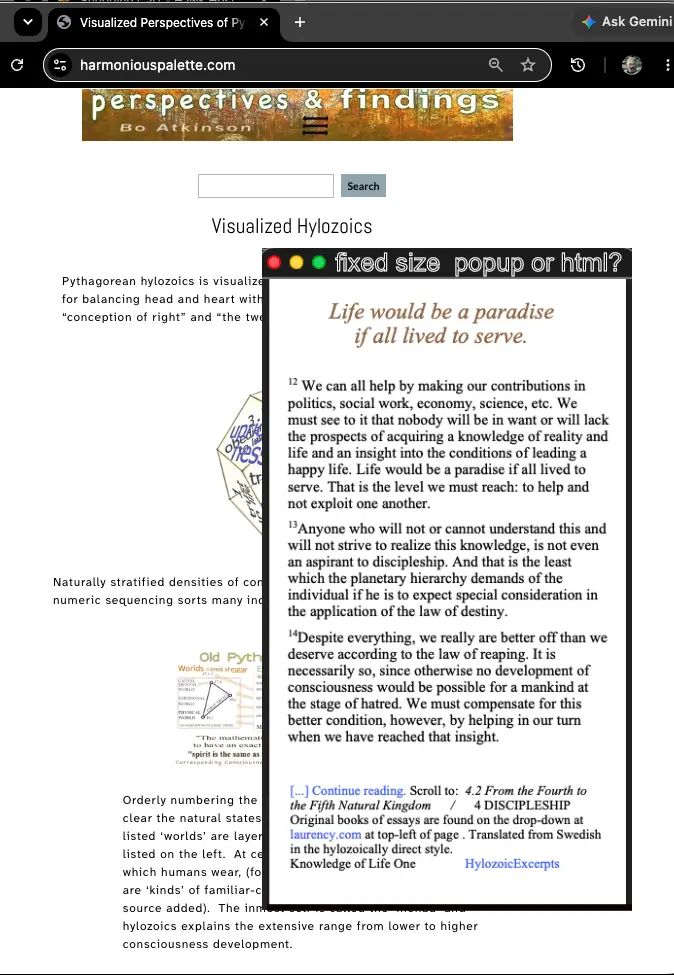
The two replies above each deserve appreciation for specific objectives to be found on the www. Thanks. Allow me to further illustrate the objective in my mind’s eye.
I sent a request to claude app and this was the first part of my request:
"Popup container to fit a phone screen while it fits specifically sized PDF, and it never opens a larger associated blank page background, and while the PDF maintains active internal hot links, and while a set of 100 PDFs open singly by clicking hot linked text titles for each individual PDF, and the displayed phone sized PDFs maintain the page of tiles as the background. This is the basic minimum goal to model a popup attached to a specific web page. "
They soon had coded the following page here displayed numerically instead of the actual titles in Chrome using many links… I wanted to see what was the minimum page frame browsers would allow. Somehow the submenu wont close, but one can see the “minimalist html look” which proves minimalist html can look like PopUps and that pdf links can be kept, rtc…
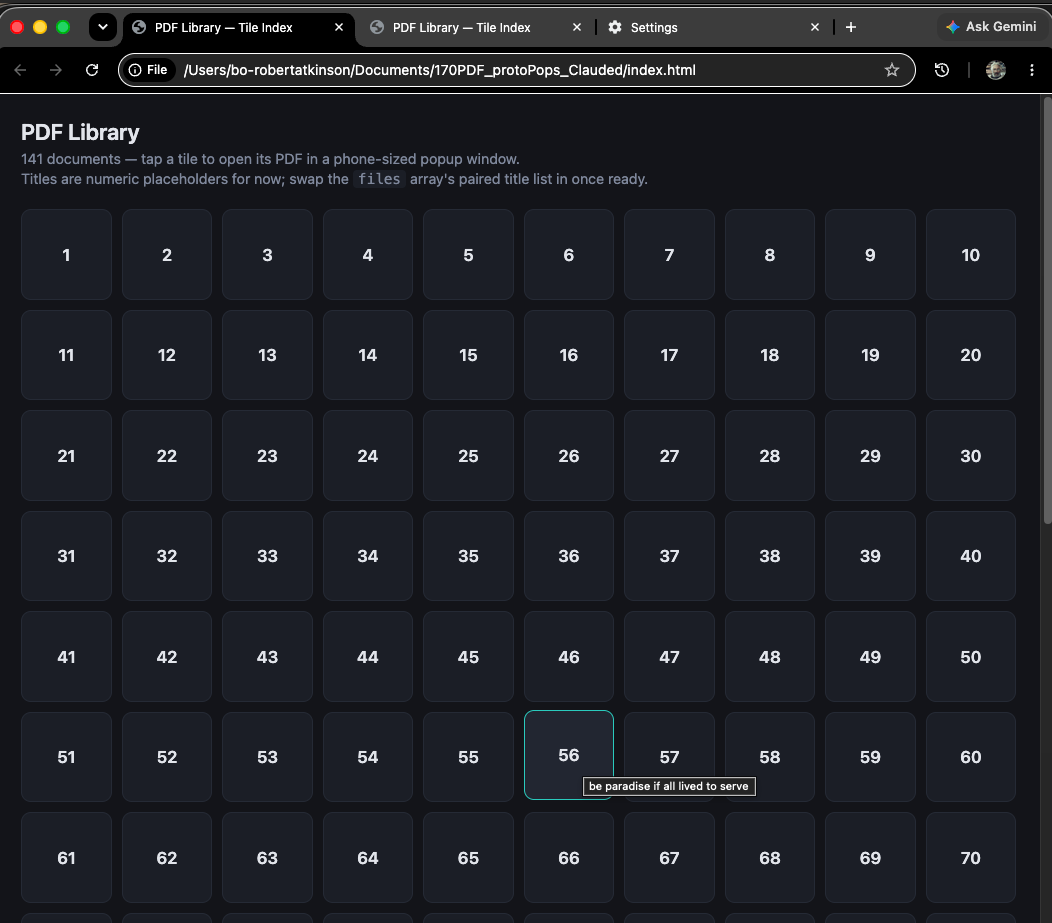
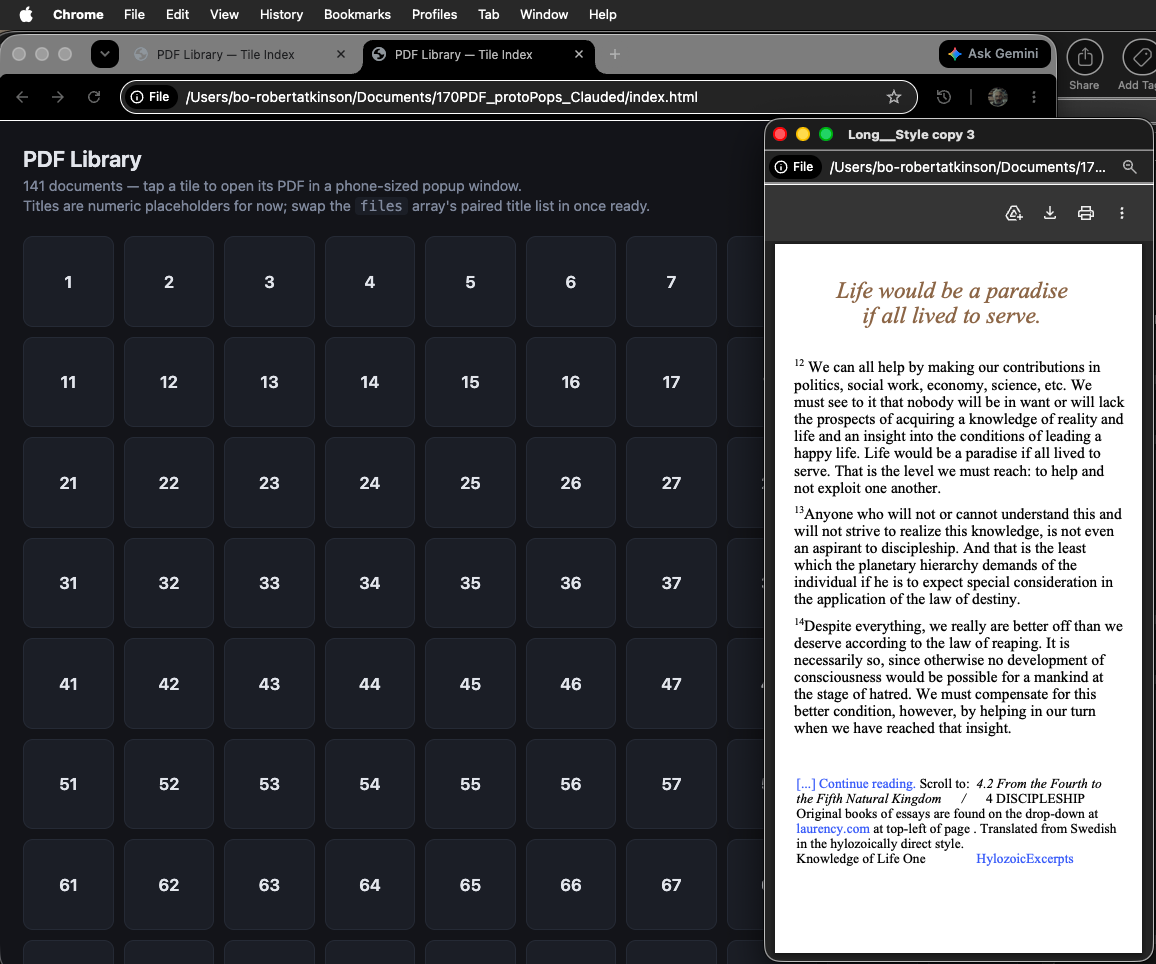
Please note the small phone sized page on a desk top page. It is 390×844. The phone width is still narrower than most device screens, no? Yet it can be floated around, and even pass beyond an edge, and it retains actual links! Its just a code test and with room for creativity.
If I am getting you correctly, you are wanting mobile PDFs to popup on a mobile screen.
If I wanted to do this I would consider the PDF first viewed on mobile… it would be an infinite pinch and zoom experience! If I really wanted this to work I would consider creating mobile versions of my PDFs for the mobile User.
I would then hide all desktop PDFs on the mobile device and introduce all my mobile version PDFs in a Sitely Popup way. I would stay away from html embedding!
Thanks so much @FlaminFig for looking….
Agreed the “infinite pinch” issue was not intended nor the mock up shown above which is a desk top mack up. The black html page generated by ai, was just as an auxiliary test to see if it would make small, viewable PDFs on larger screen, and not as a desired page style, heh, heh.
Likely most people never use large screen browsing, andf studious readers are rare indeed, and furthermore, we may see neural-direct browsing soon enough, another subject matter still.
The PDFs are years old, but ai bulk-edited 141 of them yesterday just to change one return link in each PDF, because of server and folder name changes, (another story).
If by any chance you refer to methods to float PDFs with Sitely, please advise. Again, float only on sizable screens, yet even a small laptop can bebefit from side-by-side pages for studious users.
The PDFs looked normal mobile-phone-sized to me on my sister’s mobile phone, and the listing of PDFs on my html list-page looked OK.
Fast forward- If your phone display differently frames my PDFs online, please do let me know which html I should examine. Also I had to place PDFs in a hacked self-made folder, because Sitely does no offer this hack.
Back to objective: How can the PDFs float on top of the source web page (medium to large screens), and as it is mocked-up in image above? (That was a photo-edited mock-up of a desk top PC, if one were to click on a listed link. Does that make more sense?
I much appreciate clarity of this matter, and certainly understand how tedious a rare idea can be. Perhaps even dull, so why do people want something so tiring to understand? The answer here is specifically consciousness development.
Regarding my visits with ai, i was assured that there is no way to float or display a small, mobile-phone sized PDF on top of the source html page to appear like my mock-up shown above. It was able to build a webpage style with Chrome compliant page frames, nearly getting a floating, small PDF…. For that matter a phone would load the PDF without the page. No? One has to get the sample html provided by ai to study further. Anyone want to see it?
______
PS- I spent some time trying to browse on my website, by using my newly acquired android mobile phone, (my first mobile here in decades). I could barely get rid of google search, and got it primarily for authentication of the new digital demands on life itself. Yes pinching was indeed needed for everything and anything, especially phone controls. To browse I need to send direct links, and yes, forget mega menus!… In any event this website is not for average people, and the basic computer displays are good enough, if someone actually bothered to look… Or the “read to me” apps are helpful for boo content.