I am trying to figure out since how to get sitely to build a page where you could put in Newsletter links to download and I cannot figure it out for the life of me. I tried building sitelys blog file. I just could not figure out how to add my newsletters to it to download. Any help is appreciated.
I found the best way to do this is to create your downloadable newsletters as PDF files. You can then create links on your webpages that can be set to download the files. If you want the newsletters to be viewable, you could add the PDF files to an image gallery. The gallery can be sized as a small thumbnail to which you can apply the light box feature. When clicked, the PDF file will open in a light box for on screen reading. The image gallery will work with single or multi-page PDF’s. You will still have to provide a link, maybe a button under the PDF thumbnail, that is set to download the original PDF. This option gives you the best of both worlds - a viewable, in page document for online reading, as well as a downloadable PDF document.
1 Like
Welcome onboard @rwoodard! 
I’ll just add where you can find what you are looking for…
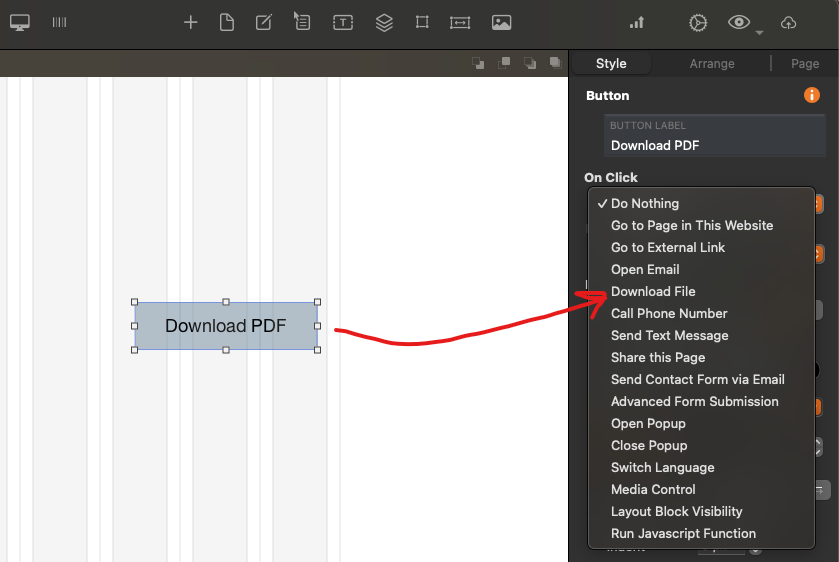
As mentioned if you use a Button, you have onclick events you can choose from, and one of them is Download File. Once you have chosen that you will be further guided to upload your pdf.
1 Like
Thank you, Stephie. We have to get that a try. I was thinking I can do it under a blog.
1 Like
Thank you, flaminfig, we’ll have to give that a try to.
1 Like
Here is what the gallery option looks like in Sitely:
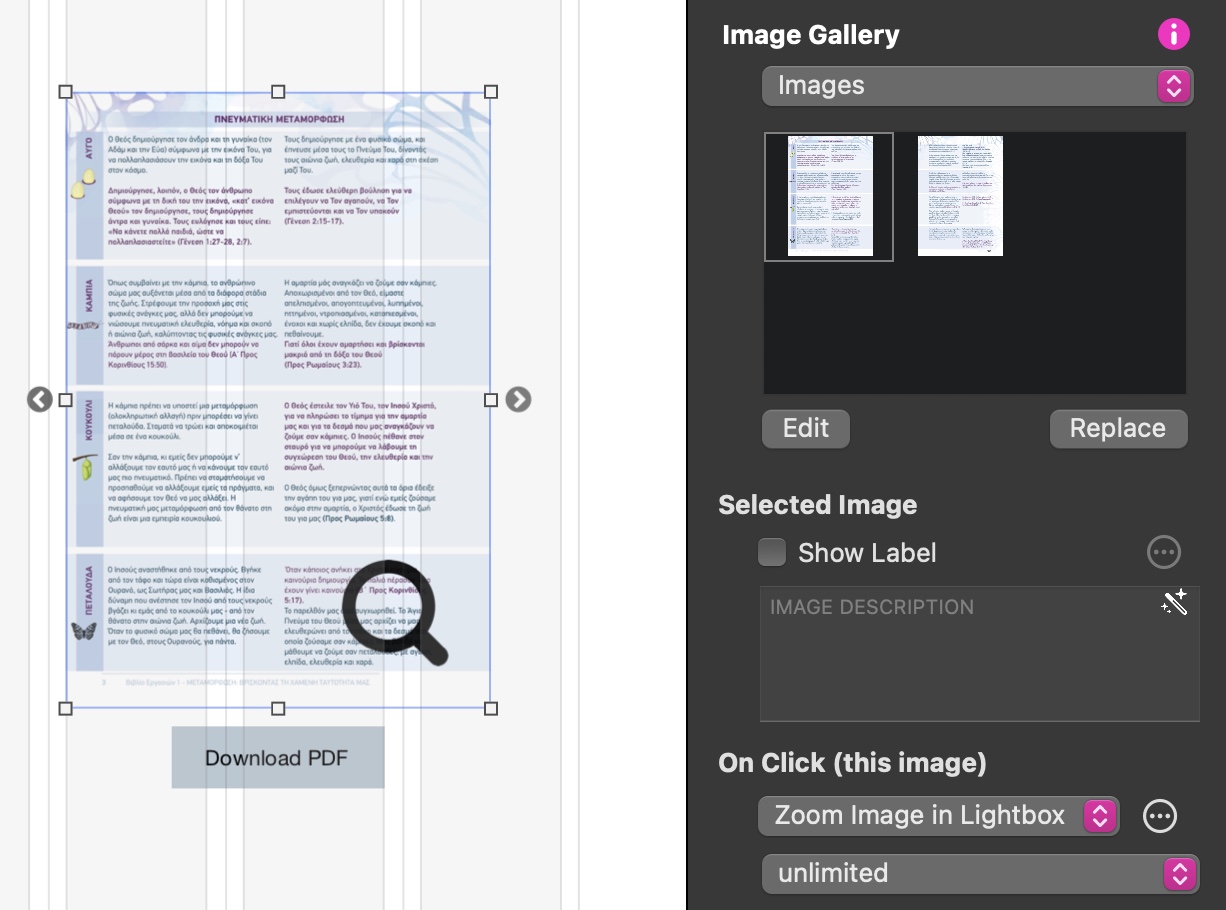
With the gallery object selected on the canvas, add the PDF file by clicking on the Edit Button. In the above example, a two page PDF file was added. Once added you can adjust the gallery size and orientation by dragging the corner handles. Add the On Click action as shown (Zoom Image in Lightbox). For the download button, follow the advice given by flaminfig above.
Note, when you add a multi-page PDF, users will be able to flip through the pages using the arrows on each side of the gallery object. They will also be able to flip through the pages when zoomed in a lightbox.
1 Like