I have one piece of text that’s too long for its text box, so I click the “Scrollable” checkbox on the Style tab. On the webpage, the text is scrollable, but I’m concerned that readers might continue past it without scrolling because there’s no scroll bar to indicate that there’s more text in that box than what they currently see. Is there a way to make the scroll bar visible? Is there some other way to address my concern?
Possible Users scrolling might not even see the scrollbar?
I feel alerting a User visually near your scrollable content would have them understand/be aleted the text area is scrollable.
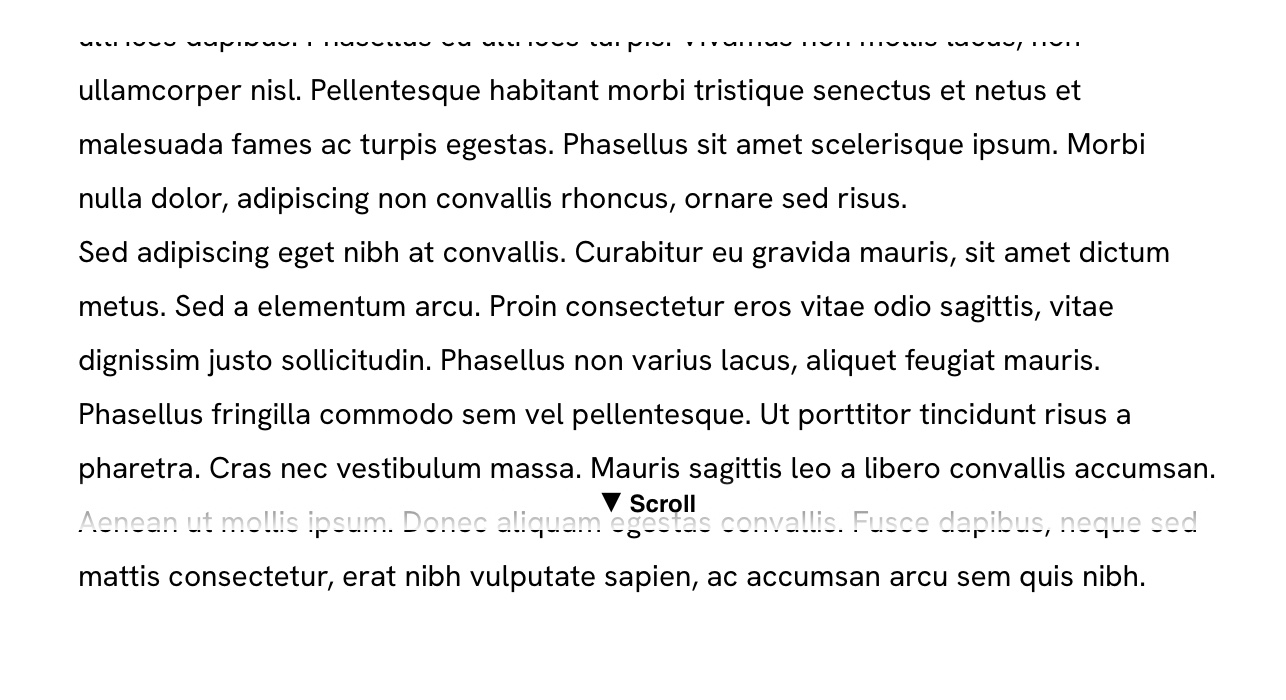
There are a number of reasons why displaying scroll bars on scrollable text boxes may not work on all browsers. One solution is to add a piece of head code to your project that looks for all scrollable text boxes and then adds a scroll indicator to the text boxes. The indicator stays on the text until it reaches the last line, then disappears. If you have the developer tools, you can add the code below to the head of your pages.
Although the code looks complicated to non-coders, it is easy, and largely self-explanatory, to change the look of the indicator itself. You can change font and styling as well as the indicator background (maybe to a solid colour) by making a few simple edits to the code before pasting into Sitely.
Note to @duncan : this might be a nice option to add to future releases of Sitely. It could be added with an additional check-box (Show scroll indicator) that appears if the scrollable option is selected in the style panel.
The indicator as I’ve styled it will look like this on a text box:
```html
<style>

/* Container enhancement */
.sitely-scrollable {
    position: relative !important;
    padding-bottom: 40px; /* extra space so text never sits under indicator */
}

/* Scroll indicator container (fixed overlay, stays in place) */
.sitely-scroll-indicator {
    position: sticky;
    bottom: 0;
    left: 0;
    width: 100%;
    text-align: center;

    pointer-events: none;
    z-index: 9999;

    font-size: 12px;
    font-weight: 600;
    font-family: sans-serif;
    color: #000;

    background: linear-gradient(to top, rgba(255,255,255,0.95), rgba(255,255,255,0));
    padding: 6px 0;

    transition: opacity 0.3s ease;
}

/* Scrollbar styling */
.sitely-scrollable::-webkit-scrollbar {
    width: 10px;
}

.sitely-scrollable::-webkit-scrollbar-track {
    background: rgba(0,0,0,0.08);
}

.sitely-scrollable::-webkit-scrollbar-thumb {
    background: rgba(0,0,0,0.45);
    border-radius: 5px;
}

.sitely-scrollable::-webkit-scrollbar-thumb:hover {
    background: rgba(0,0,0,0.65);
}

/* Firefox */
.sitely-scrollable {
    scrollbar-width: thin;
    scrollbar-color: rgba(0,0,0,0.45) rgba(0,0,0,0.08);
}

</style>

<script>

window.addEventListener('load', function() {

    function addScrollIndicators() {

        document.querySelectorAll('div').forEach(function(el) {

            const hasOverflow =
                el.scrollHeight > (el.clientHeight + 20);

            if (!hasOverflow) return;

            const textContent =
                (el.innerText || '').trim();

            if (textContent.length < 100)
                return;

            el.classList.add('sitely-scrollable');

            try {
                el.style.overflowY = 'auto';
            } catch(e){}

            if (!el.querySelector('.sitely-scroll-indicator')) {

                const indicator = document.createElement('div');
                indicator.className = 'sitely-scroll-indicator';
                indicator.innerHTML = '▼ Scroll';

                el.appendChild(indicator);

                function updateIndicator() {

                    const atBottom =
                        el.scrollTop + el.clientHeight >=
                        el.scrollHeight - 5;

                    indicator.style.opacity =
                        atBottom ? '0' : '1';
                }

                updateIndicator();

                el.addEventListener(
                    'scroll',
                    updateIndicator,
                    { passive:true }
                );
            }

        });

    }

    addScrollIndicators();

    setTimeout(addScrollIndicators, 500);
    setTimeout(addScrollIndicators, 1500);
    setTimeout(addScrollIndicators, 3000);

});

</script>
I find this visually challenging @Stephie.
If someone was to scroll reasonably fast I feel this indicator would be lost on them.
It is a very tricky thing having scrolling text within a scrolling web page.
Visually it is a challenge so I feel visually it needs to be highlighted… even in creative ways to visually alert the User.
I understand what you’re saying, @FlaminFig . This is why I mentioned the styling options within the code. For example, instead of a gradient bar across the text, it could be changed to a black pill-shape with red text - it really all depends on how prominent the instruction needs to be.
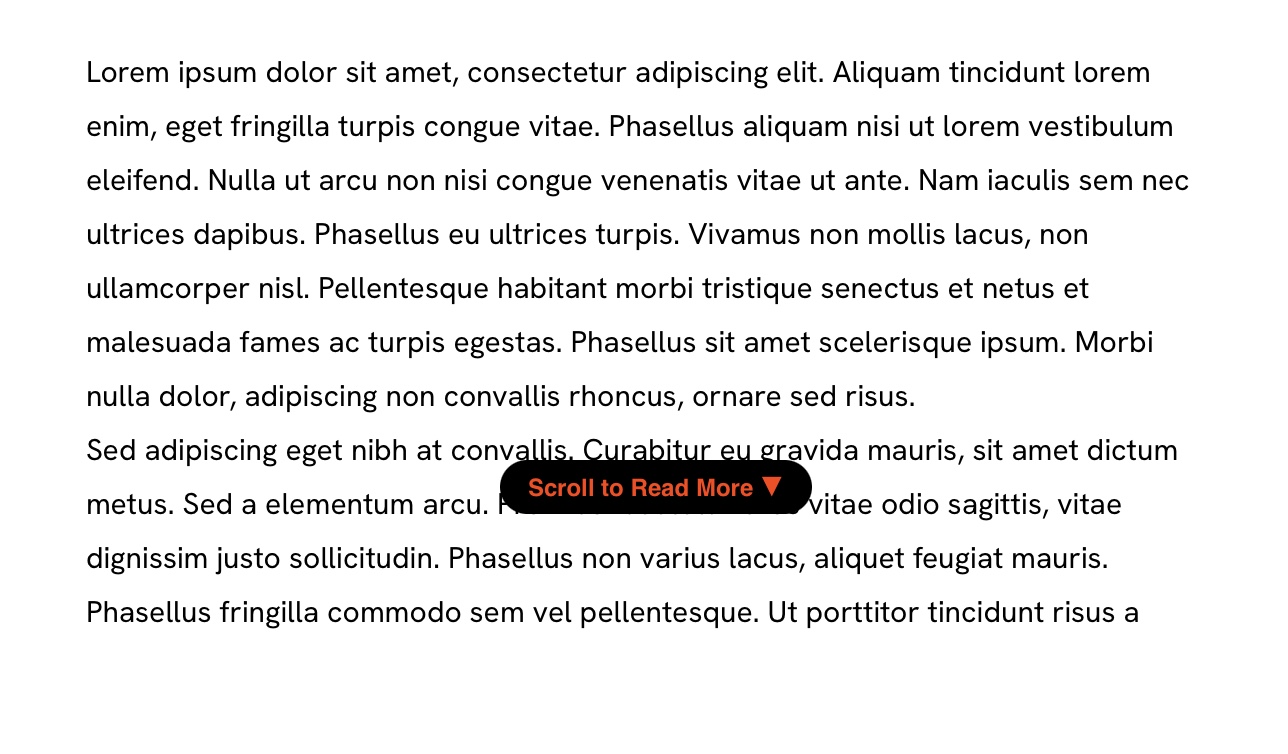
Personally, I’m not a great lover of scrolling text frames but they do have their uses. For example, on sites where an FAQ section is being built with popups which have been allocated a fixed amount of space on the page, some answers may require more space that the popup has been allocated. In such cases, a scrolling text frame is an obvious solution. But, as you say, it has to be seen if it’s going to be an affective user alert. That is really all down to applying styling options - in any event, it’s often better than just having a scroll bar only appear when hovering over the text element.
1 Like