Hi All, I am upgrading my site to a second language. I created copies of its pages in a 2nd language and changed their names accordingly, but unsure how to change to a second page the main page. Please help. Thanks.
A straightforward approach is to duplicate your primary-language site and update the text for each additional language. Each version can then be uploaded to a language-specific directory on your server, for example a folder named using the relevant ISO language code.
You can add language-switching links to all versions of the site. These links simply point to the root URL for the default language and to the corresponding language-specific folder for the alternative versions. This allows users to switch languages easily, while keeping each version’s index page intact, as they exist in separate server directories.
That said, fully multilingual websites are becoming less essential in some cases, as most modern browsers now offer built-in page translation. However, depending on the purpose of your site, there may still be a strong case for providing accurate, native translations rather than relying on automated tools.
1 Like
Thanks for the suggestions. How do I duplicate the site to an additional language and create a language-specific folder? Duplicating each page one by one does not seem right to me. Also, I created links using emojis in the footer, but I cannot link pages to them as they get reset to the latest selection. Please advise. Thanks.
To duplicate your site, click on Sitely’s File menu and choose Duplicate.
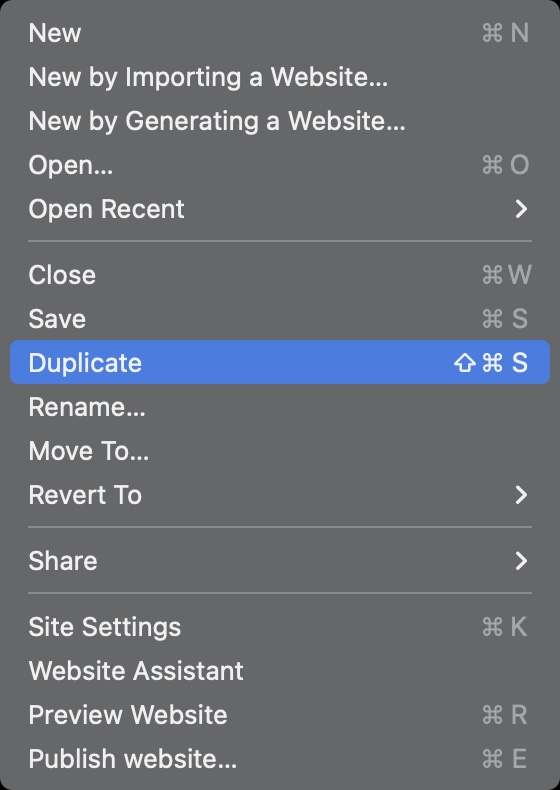
This creates a copy of your main website. You can then give the copy a new name, such as mywebsite-fr for a French version. Open this duplicated site and translate the content into your chosen language. Make sure you also change the Publish Location in Site Settings → Publishing so it points to the correct folder on your server where the language-specific version will be published.
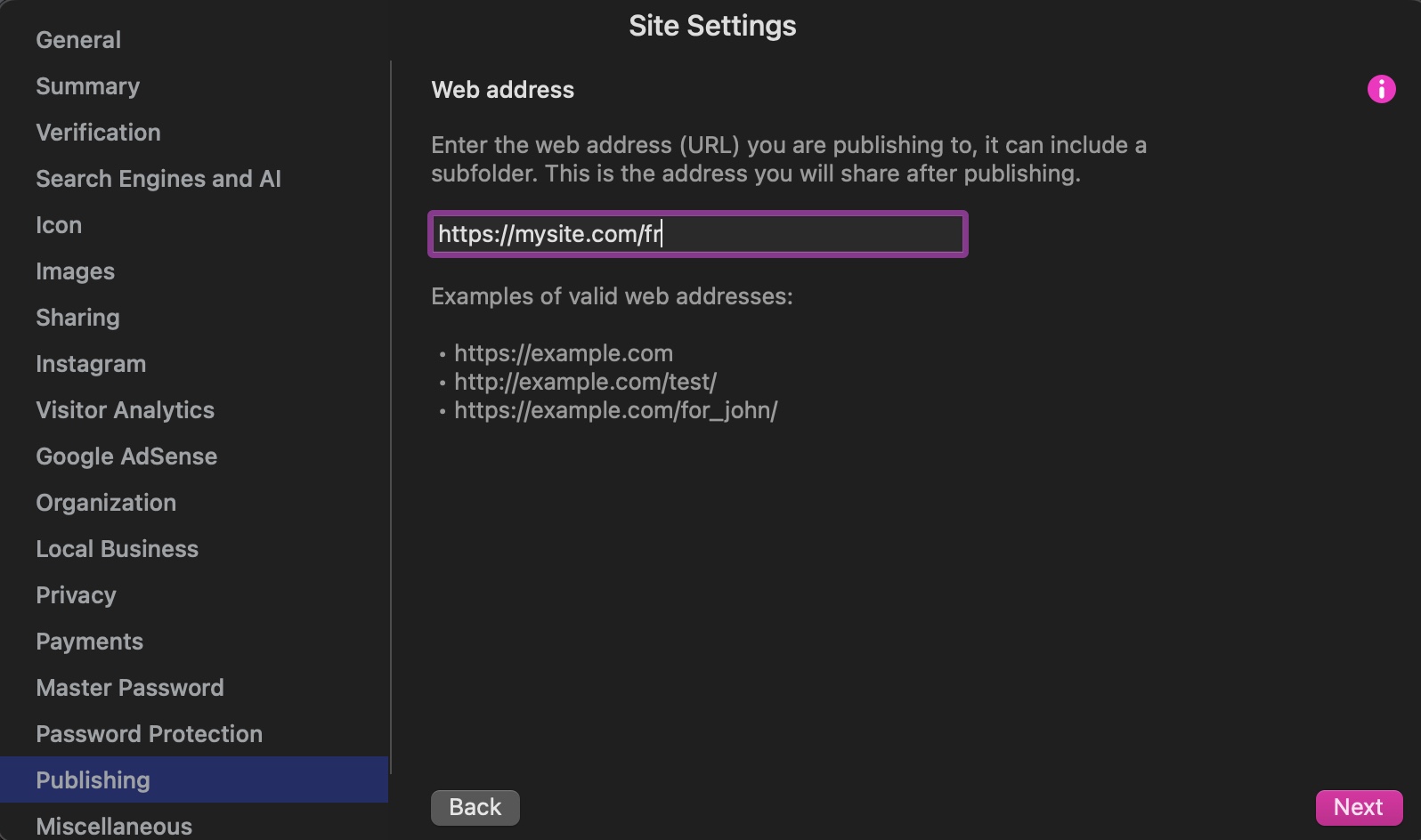
Using this approach means you do not need to create new pages. All pages can keep the same names as the original language version. Effectively, you are creating a separate website that is published to its own folder.
To create the language-specific folder on your server, you will usually need to log in to your hosting control panel (such as cPanel) and create a new folder using the file manager. This folder is typically placed inside your main website folder along with all your other website files. If you are unsure how to do this, your hosting provider can advise you based on your server setup.
Once this is complete, you will have two separate Sitely website projects: one in the original language and one in the new language. These can be maintained independently, which helps keep project files to a manageable size. You can then add a language-switching link that appears on all pages, usually linking to the index page of the alternate language site. Alternatively, you may prefer to create page-specific links that direct visitors to the corresponding page in the other language.
To add more languages, simply repeat this process for each additional language version.
1 Like
Thanks, but I found this even more confusing and more difficult to maintain. I would prefer to duplicate pages, but I can’t figure out how to change the name of index page. Anybody knows?
One of your pages must be named index.html for your site to work correctly. However, that doesn’t prevent you from duplicating that page and renaming it. Just click on the Duplicate Page option at the bottom of the Pages Panel with the original home page selected.

This will create a copy of the index page. Select the copy and take a look over in the Page Panel. There you should see that the page has been designated as a Regular Page and has been given the Page Title index.html 1. Change this to something more meaningful such as index-fr, or index-es, or maybe index-de - or whatever language suffix you want. This will automatically rename the Page Filename to reflect your chosen Page Title. e.g. index-fr.html.
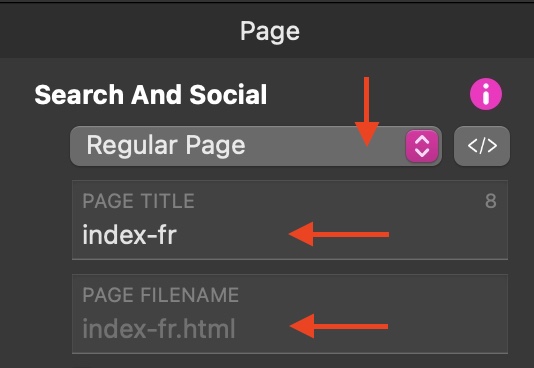
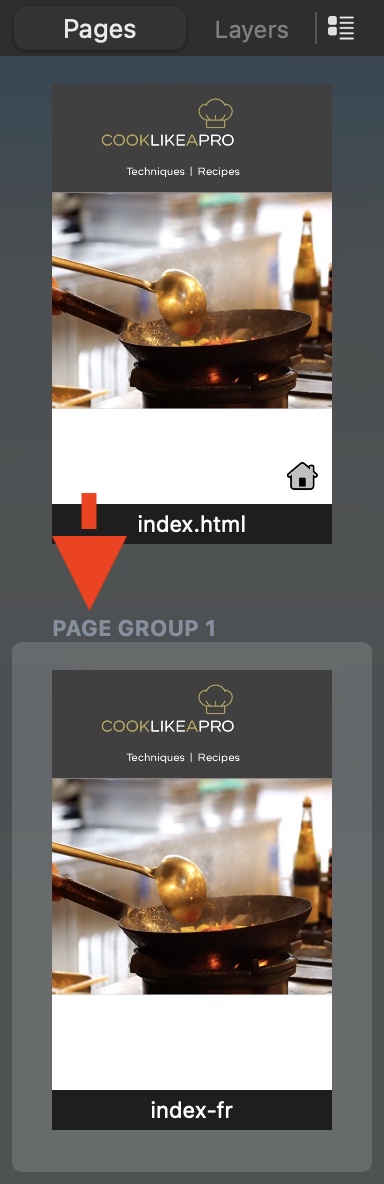
You can now edit this new page into your required language version. Repeat this for all your other pages - copy and rename. You could also create a group to keep all language specific versions of your pages together. To do this, click on the Plus Icon at the bottom of the pages panel, and choose Add Page Group.

You can now drag your newly created pages in the pages panel so that they appear under the newly created page group. All you then have to do is to make sure your language selector points to the appropriate language pages in the site.
As a side note: You can change the Page Title to something more meaningful - even on the index.html page. This can help with SEO and will be the title that appears in browser bars. The only difference between the Home page and Regular pages is that the Home Page will always have the filename index-html, whereas Regular pages will be automatically named with your Page Title.
Thanks for the tips. I created 2nd group for German language, copied index page, renamed in to index-de.html, and placed to the group. I also created 2 buttons - English and Deutsch not visible on all pages, since I may not transpose all pages. The current problem is that I cannot rename menu items in 2nd German group to German - when I do so they are renamed on English page too. Any help?
This is most likely due the menu being made to show on every page. What you need to do is disable that option and to use copy and paste to add the menu on to each page and then you will be able to edit the menu on each page manually.
Can I disable it only for 2nd language group?
If your second language pages are part of your main site, I think you have the option of not showing the menu on group pages - I’ve not tried it but it’s worth checking to see how it works. If this is an option, you could create a new menu and have it only show in your language-specific group pages and have it not display on the other pages. I’ve not been able to make this option work, so if that’s something you would like to do, it may be worth asking @duncan how this feature works.