Is there some native way in Sitely to make a drop cap? I know I can “fake it” by using three different text boxes, but that seems like more work than it’s worth.
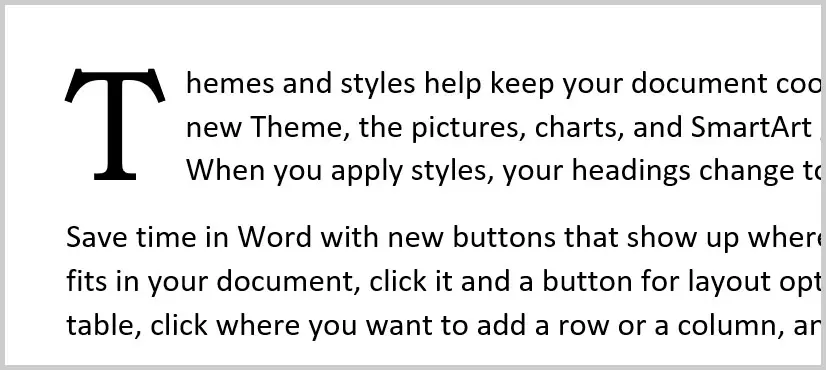
Add the code below as an embed element on your sitely page. Place the code box somewhere discreet on your page (I usually place it as a small box at the top-right of the page). It doesn’t display on your page so its position isn’t relevant. However, you may need to find it in case you want to remove or edit it it at some point.
You can now add text boxes to your page and style them any way you like. with the text box selected, head over to the Arrange panel, add an HTML ID of dropcap. Now, when previewed your text should display with a drop cap.
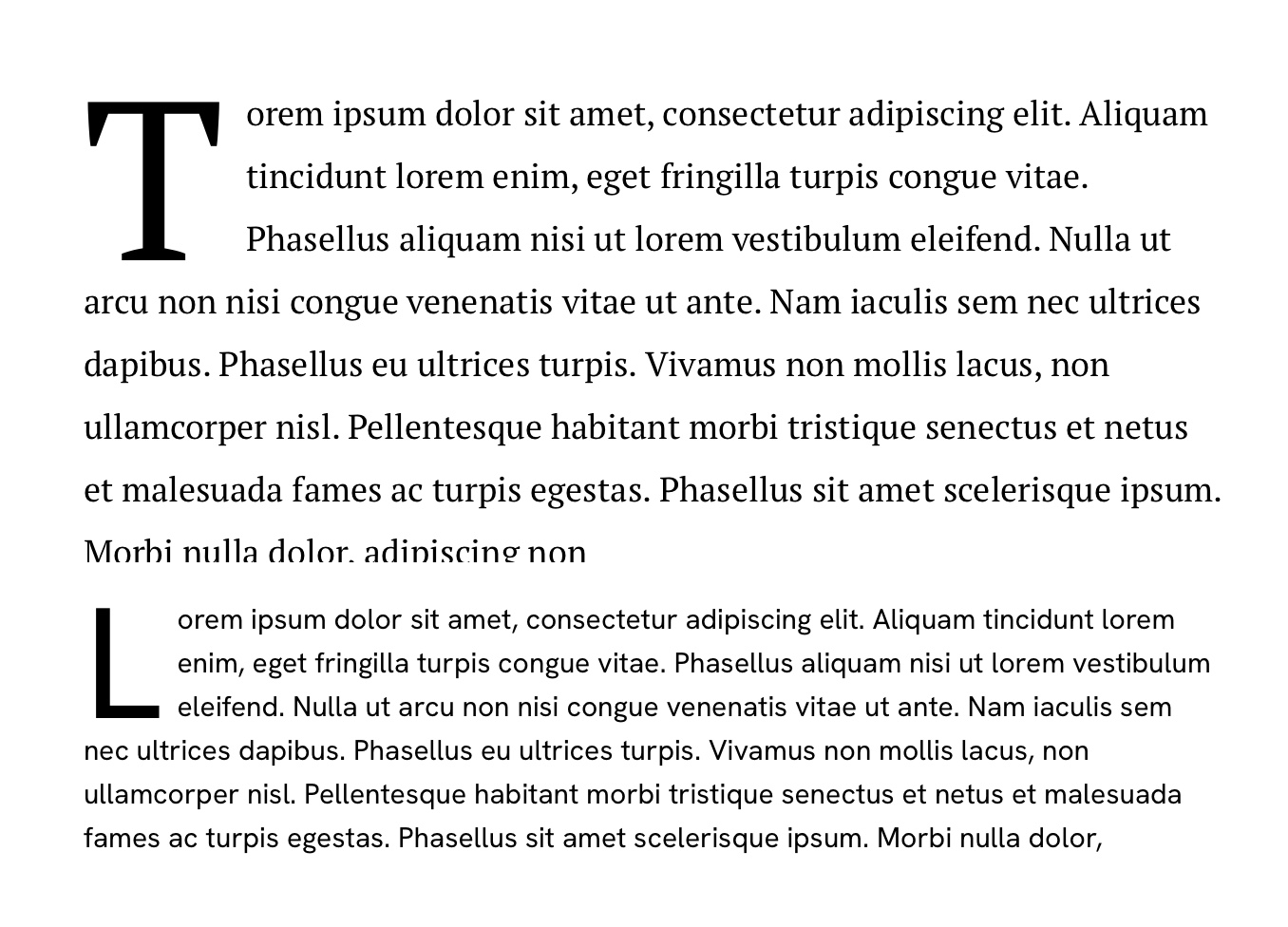
Things to note: The drop cap is only applied to the first paragraph within any text box. but you can add as many text boxes as required if you want multiple drop caps in your page - just make sure that each instance where a drop cap is required is within its own text box and has the same HTML ID.
On desktop viewports, this code should work well with most serif and san serif fonts set at between 12 and 18pt with line height set to between 1 and 1.4. It should also display just fine on mobiles, but the drop cap may extend into the fourth line of text if the font on your mobile version is set much above 13pt. I’m not too sure why that is, but as a side project, I may experiment further to make it a little more accurate.
finally, you won’t see the drop cap on the canvas, but it will show up in preview mode. Just be sure to allow some extra space in your text boxes to cover the possibility that the drop cap pushes your text beyond the bottom of your text box.
<style>

/* =========================================================
   SITELY RESPONSIVE 3-LINE DROP CAP
   =========================================================

   USAGE:
   Add the HTML ID "dropcap" to a Sitely text box.

   The drop cap is applied only to the first direct
   paragraph in that text box.

   Indented / nested paragraphs are ignored.

   The drop cap automatically:
   • Inherits the text font
   • Inherits the text colour
   • Inherits the font weight
   • Scales with font size
   • Scales with line height
   • Adapts to desktop, tablet and mobile
   ========================================================= */


#dropcap > p:first-of-type::first-letter {

    float: left;

    font-size: var(--dropcap-size, 3.6em);

    line-height: var(--dropcap-line-height, 0.833);

    margin-top: 0;
    margin-right: 0.10em;

    font-family: inherit;
    font-weight: inherit;
    font-style: inherit;
    color: inherit;
    text-decoration: inherit;

    padding: 0;
}

</style>


<script>

(function () {

    var DROP_CAP_MULTIPLIER = 3.6;


    function updateDropCaps() {

        document.querySelectorAll('#dropcap').forEach(function (element) {

            /* Only the first DIRECT paragraph */
            var text = element.querySelector(':scope > p:first-of-type');

            if (!text) return;


            var styles = window.getComputedStyle(text);

            var fontSize = parseFloat(styles.fontSize);
            var lineHeight = parseFloat(styles.lineHeight);

            if (!fontSize || isNaN(fontSize)) return;


            /* Fallback for "normal" line-height */
            if (!lineHeight || isNaN(lineHeight)) {
                lineHeight = fontSize * 1.2;
            }


            /* Proportional drop-cap size */
            var dropCapSize =
                lineHeight * DROP_CAP_MULTIPLIER;


            /* Default three-line float */
            var ratio = 0.833;


            /*
             * Mobile correction for larger text.
             * Prevents the drop cap extending into
             * a fourth line on smaller screens.
             */

            if (window.innerWidth <= 700 &&
                fontSize > 17.3) {

                ratio =
                    0.833 -
                    ((fontSize - 17.3) * 0.055);

                if (ratio < 0.62) {
                    ratio = 0.62;
                }
            }


            element.style.setProperty(
                '--dropcap-size',
                dropCapSize + 'px'
            );

            element.style.setProperty(
                '--dropcap-line-height',
                ratio
            );

        });
    }


    function initialise() {

        updateDropCaps();

        window.addEventListener(
            'resize',
            updateDropCaps
        );


        if ('ResizeObserver' in window) {

            var observer =
                new ResizeObserver(updateDropCaps);

            document.querySelectorAll('#dropcap').forEach(
                function (element) {
                    observer.observe(element);
                }
            );
        }
    }


    if (document.readyState === 'loading') {

        document.addEventListener(
            'DOMContentLoaded',
            initialise
        );

    } else {

        initialise();

    }

})();

</script>
3 Likes
This is awesome, thank you!
One problem, though, is that it not only puts a drop cap in the first line of each text box, but also in the first line of every indented paragraph (using “Quote”). Is there a way to make it not do that?
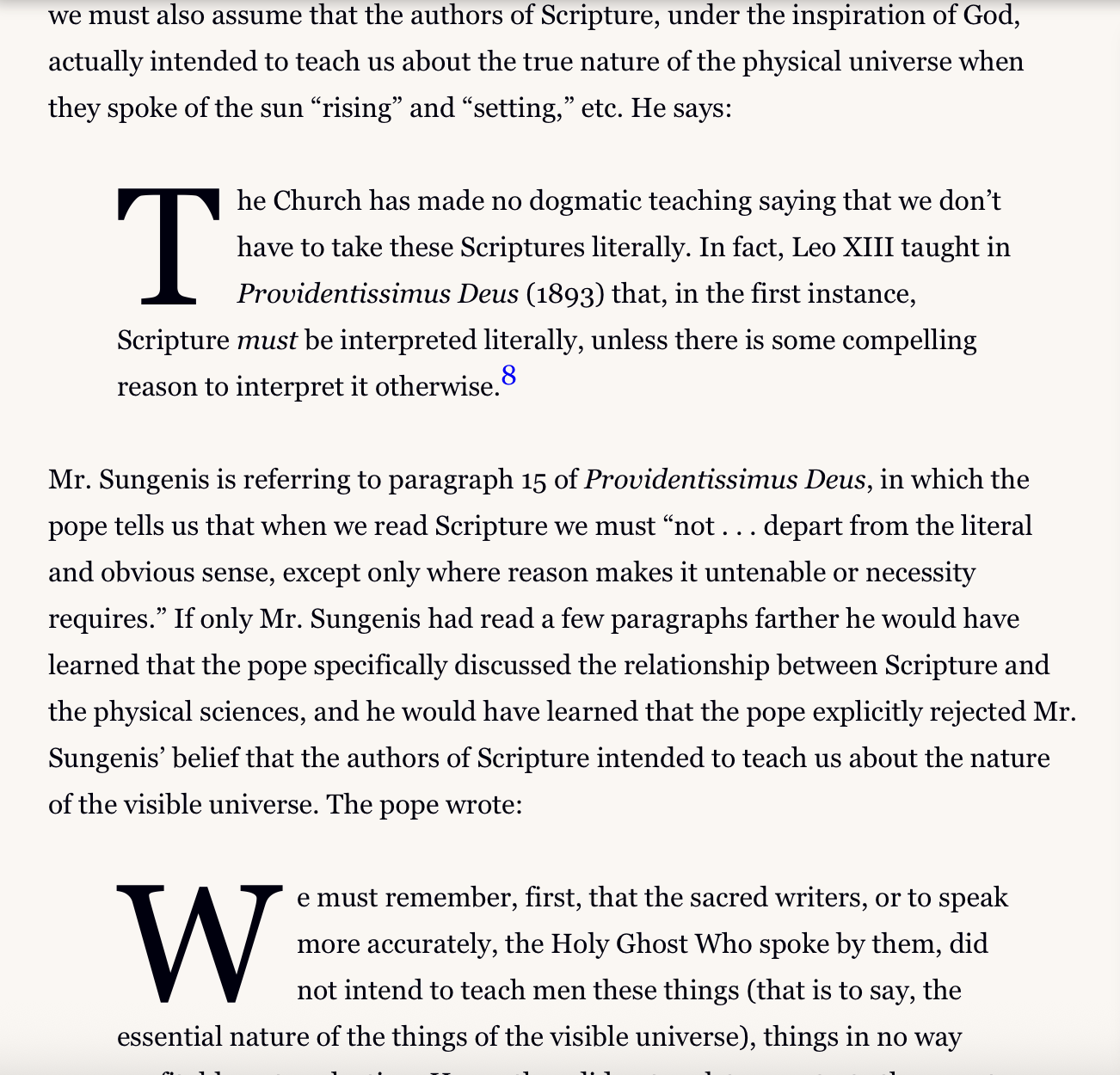
the only way around that is to place your indented paragraph within its own text box. When I get round to finalising this code snippet, I’ll try and prevent that from happening - thanks for pointing out the issue..
I have a lot of indented paragraphs, so I don’t think I’ll do that. But I’d sure appreciate it if you give me a heads-up here if you ever fix that issue. It’s excellent work so far, and thank you so much for sharing it with me!
EDIT: Oh, one other thing. It would be cool if we could specify which paragraph gets the drop cap. My pages are all the same: Title, subtitle, author credit, text. It would be great to be able to say “drop cap the 4th paragraph” instead of putting the title, subtitle and author credit in their own text box and starting the text in a separate text box.
@Gary , The code in my first post above has been modified to overcome the issue with indented text. Now, only the FIRST paragraph of any text frame will have the drop-cap applied. All other paragraphs will be ignored, including those paragraph styles that indent the text, or that may have had the list style applied.
Unfortunately, The way Sitely applies the HTML ID doesn’t work on selected text - it only applies the ID to the whole text container, regardless of how many paragraphs it contains. So, whilst this latest iteration of the code solves the issue of having drop caps applied to other paragraph styles nested within the container, thus allowing you to add as many indented sections as you want, it can’t allow you to apply an HTML ID to specific paragraphs. Given that Drop Caps are commonly used once in a major section of text (as in the first paragraph of a chapter within a printed book), creating a new container for each major section of text shouldn’t be a major problem. Hope this solves your issue.
Wow, thank you so much for fixing that! I really appreciate it!
1 Like