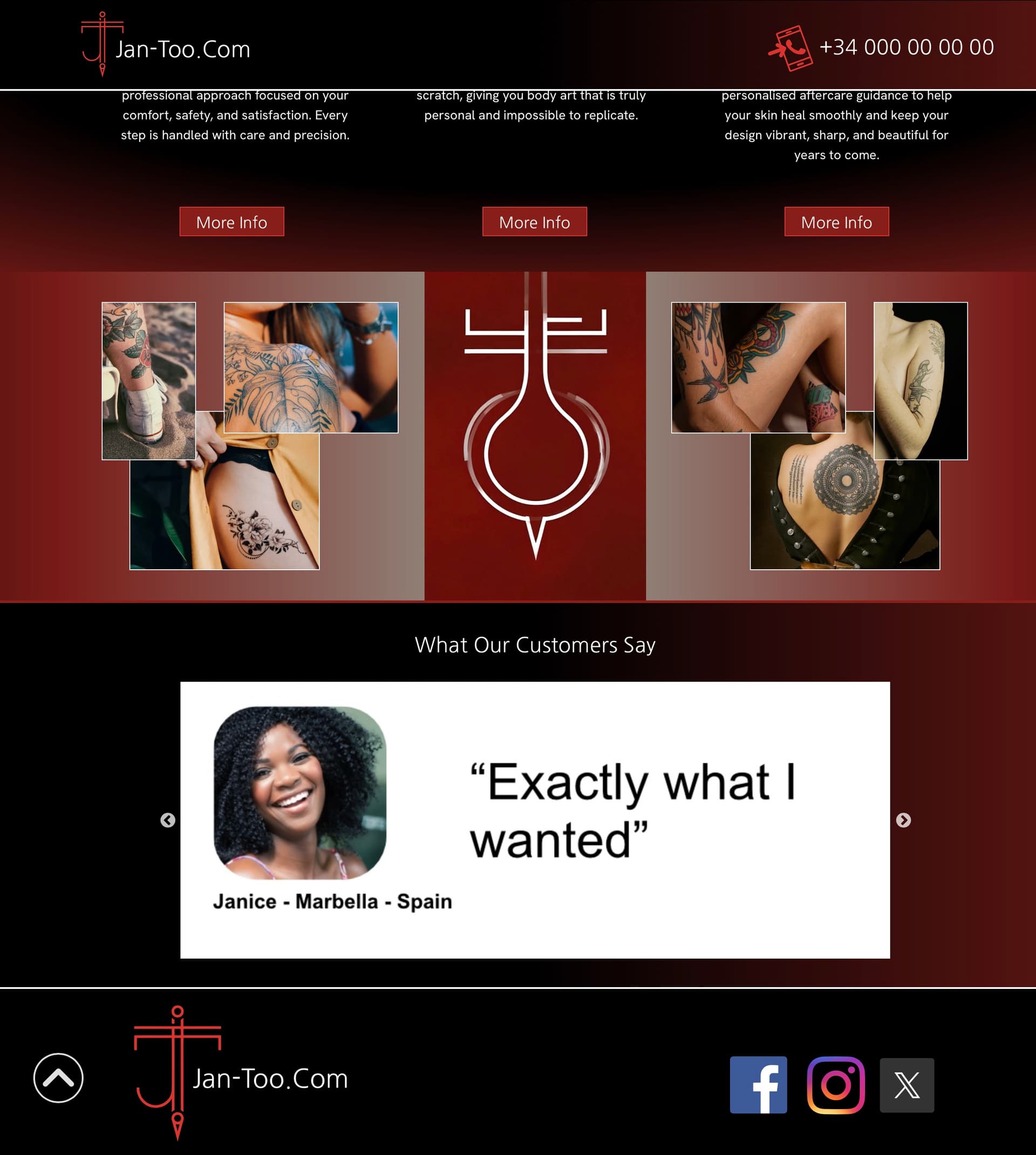
I’m fairly new around here, so I thought I’d break the ice by sharing a little tutorial file for anyone who hasn’t yet had the chance to explore some of the newer Sitely features.
I actually discovered Sitely (back when it was Sparkle) through my father, who absolutely loved the app and everything it could do. He taught my sister and me how to use it, and we’ve been hooked ever since. We now use it for most of our client websites, and - so far - haven’t had a single design turned down.
My father has since retired from the design world, but he was always a big supporter of this community. He kept telling me what a great group of people you are and encouraged me to stay involved, share ideas and learn from you all. So here I am, hoping to pick up a few new tricks along the way.
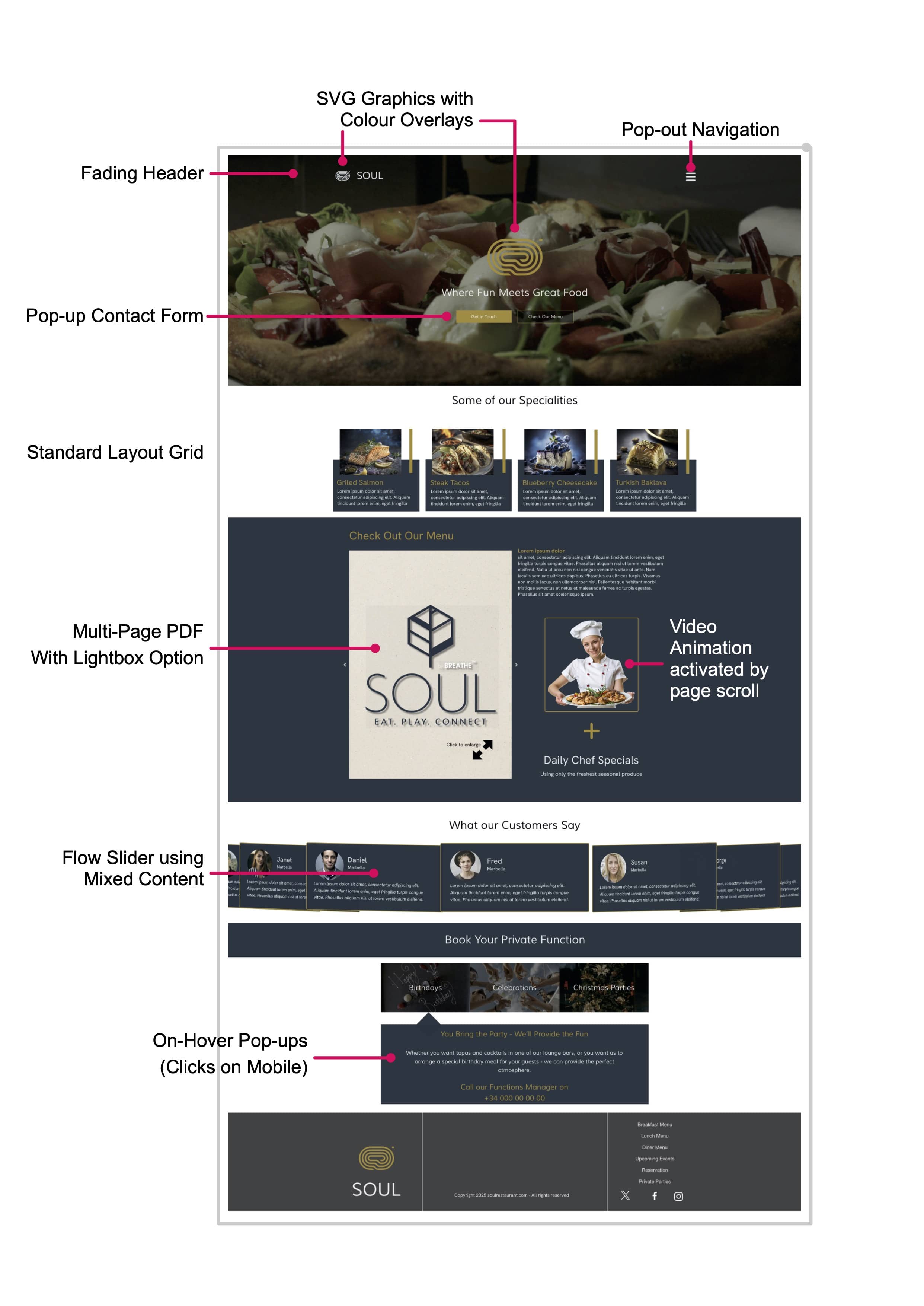
I’ve uploaded the sample file to SwissTransfer, where it’ll stay available for about 30 days. If you’re reading this after it expires, just send me a PM and I’ll happily re-upload it. The image below is a preview of the page and the features it demonstrates.
When you open the Sitely file, I’d suggest giving it a quick preview first. Seeing the finished page in action makes it much easier to understand how everything fits together before you dive into the layers.
Inside the file you’ll find everything neatly organised into layout blocks, groups and popups, all clearly labelled in the layers panel. Once you start clicking around - and checking the style and arrange panels - you’ll quickly see how each element was put together. Hopefully it sparks a few ideas and gives you something new to try out.
Thanks for reading my ramble! I’m looking forward to chatting with you all and getting more involved in the community.
A really nice introduction @Stephie
Welcome onboard!
Sitely has really grown a lot over these last years, and like yourself I use it for all my clients. I love the way we can design the website on a free flowing canvas!
Hope you have a great time here in the forum and with Sitely!
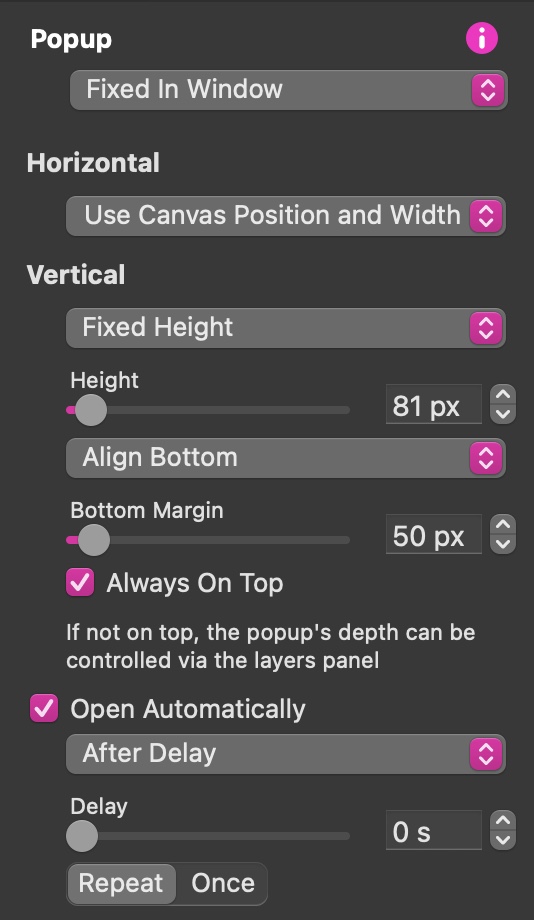
Not quite sure if I’ve understood you well, but I think you want a button placed somewhere on the page that will take users back to the top of the page which becomes visible as the page is scrolled. If I’ve understood you well, what you need to do is create the button in a popup that you can fix to the browser edge (left, right or at the bottom of the browser window. The popup should be set with the following parameters (assuming a browser bottom position).
The important thing here is to ensure the Repeat option is selected. If you don’t do that, the button will disappear after using it once. I assume you would want it to remain active after it’s been clicked.
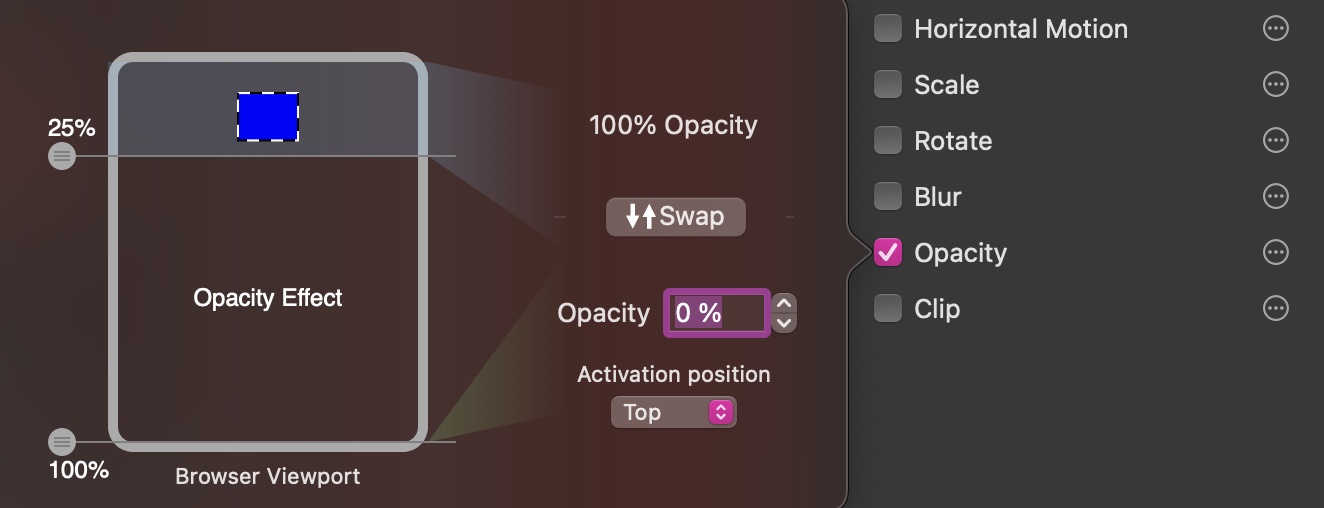
To make the button appear a little after users start scrolling, just add an opacity animation to the button with the following settings.
Using this method, you can position the popup in any location you want. Just remember to make the popup with a transparent background and ensure that it doesn’t obscure any important content on the page.
I forgot to mention that the opacity settings I applied to my example will make the button gradually appear from the 25% point - reaching full visibility when the page bottom is reached. If you have a particularly long page, you may want to adjust the bottom 100% slider to about 40% - this will make the button fully visible earlier, where it will remain for the rest of the page scroll. Hope it all works for you.
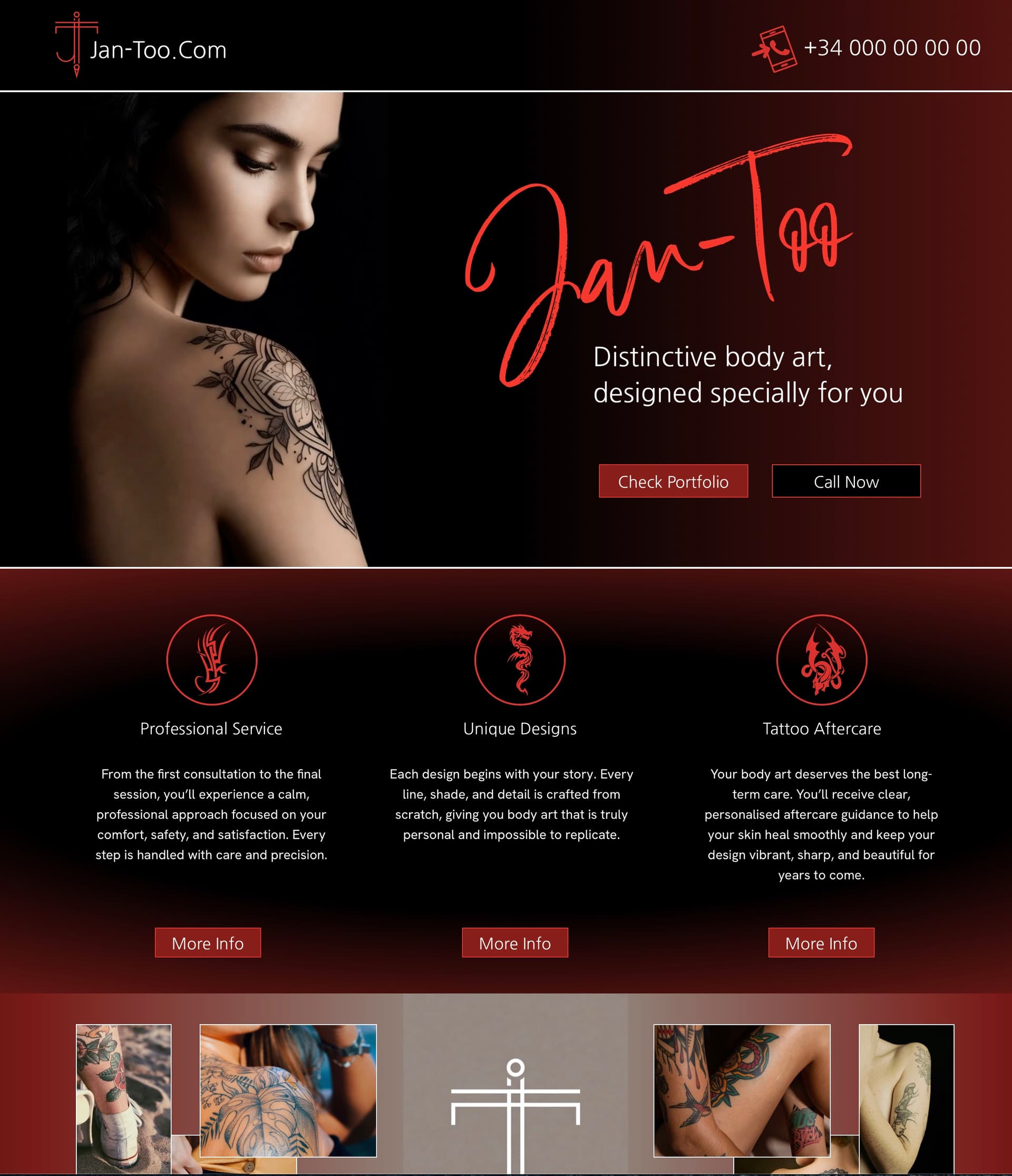
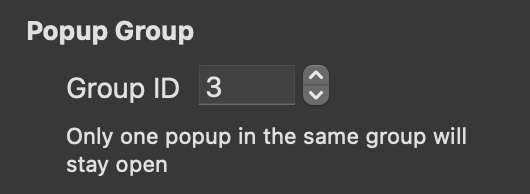
A simple issue to resolve, Just give your popup a unique group ID. In my example, I gave it a group ID of 3. This ensures that other popups on the page remain open.