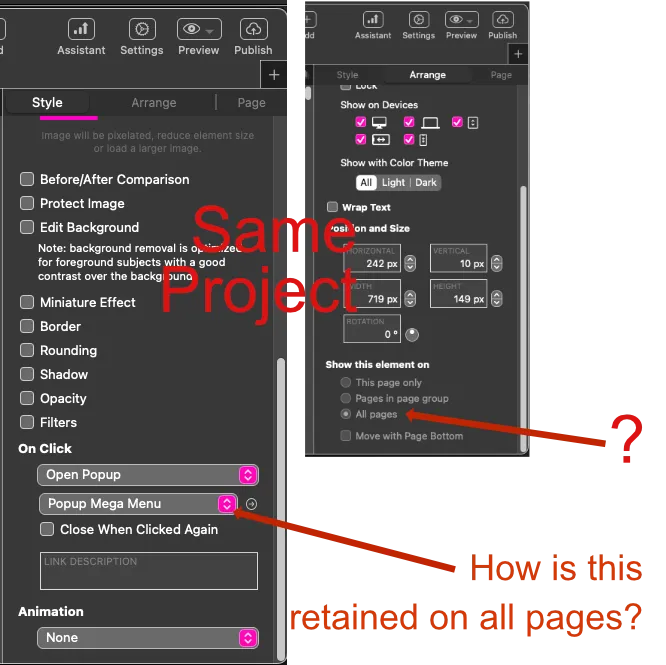
Image below shows two panels with presumed settings. Question: How is the popup menu retained or displayed and kept functional on all 30+ pages? Other pages display just fragments of menu on index-landing page. The Docs, posts, topics-here and vids are all very nice but seeing an image of panels all correctly set for a popup-menu-element would help. Here are screenshots from index page, of what has not as yet worked for all pages:
The mega menu popup itself should be set to show on all pages - so too should the link used to open the popup. Typically, the mega menu link will be part of the main navigation in a navigation block on the home page. The popup would typically be positioned to open beneath the main navigation block. Both the navigation block and the popup should then be set to show on all pages. The example below is a mega menu popup for a recipe section of a cooking site. it’s designed to be displayed on all pages of the site.
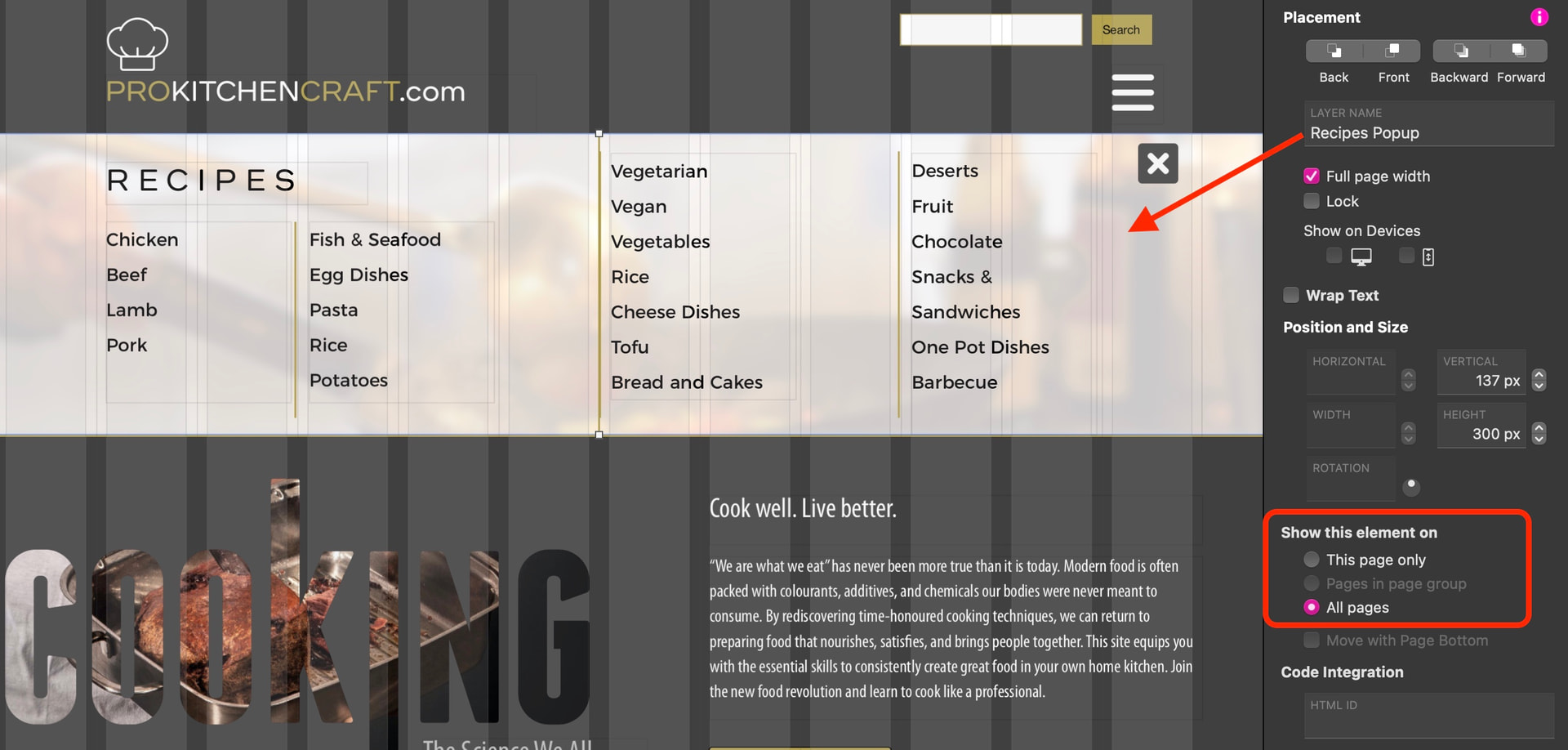
The mega menu is triggered from a main navigation link behind the hamburger menu, which is also displayed on all pages, it could equally be triggered from a normal Sitely menu or as a simple text link in the header area of the page. The only thing to remember is that the header area containing the link must also be set to display on all pages. If you don’t do this, there will be no way for visitors to trigger the mega menu on other pages. Also note that the mega menu will not remain open when switching to a new page - it must be triggerred on each page visit. this is normal behaviour.
1 Like
Thanks Stephie, but where is the ‘Placement’ panel found? Only this is seen here:
It says “All Pages” near bottom, greyed out.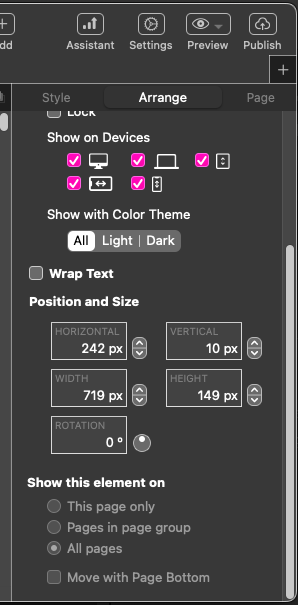
To get the Placement Panel, is there a further Plugin or version beyond Sitely 6.1.1 ?
Bo
The Popup is often placed manually on the screen - just click and drag the popup to where you want it to appear on the canvas. For this to work, the popup type should be set to Normal.
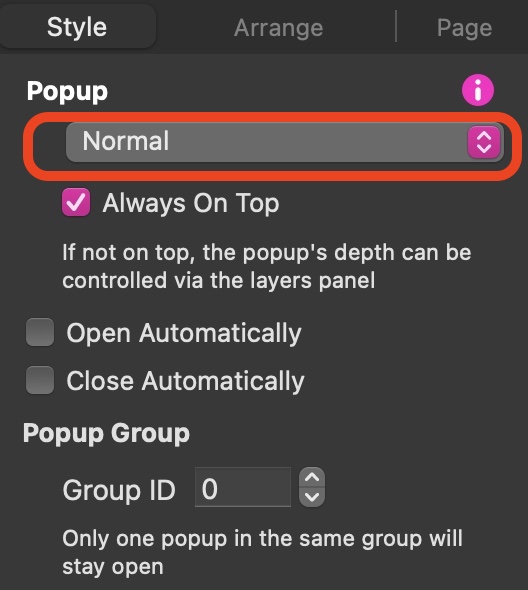
Once the popup is placed on the canvas, you will notice that the placement coordinates are automatically displayed in the Arrange tab.
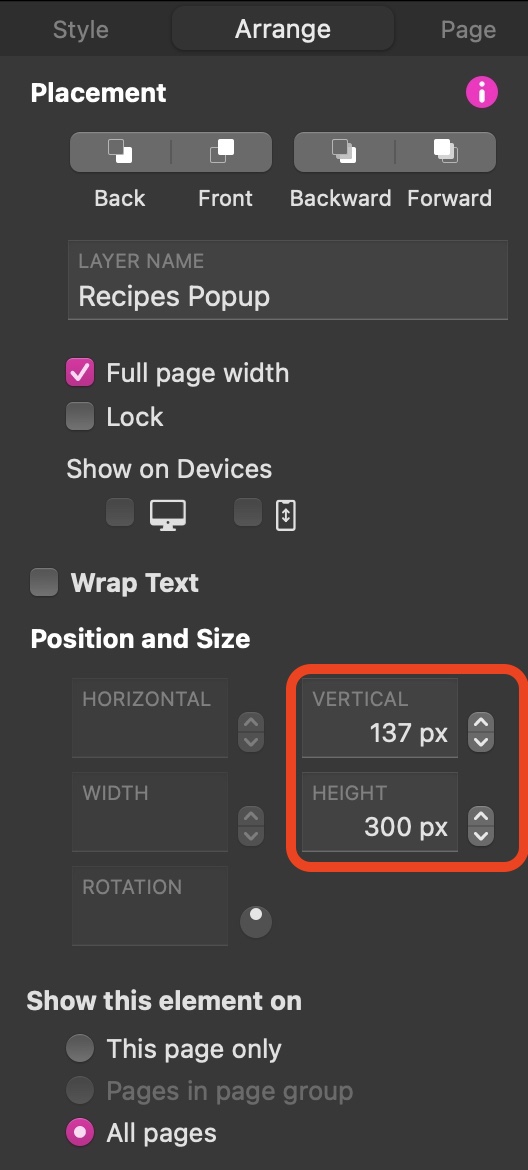
In my example only the vertical position and the height of the popup is displayed because my popup is a Full Width Popup. If yours isn’t a full width popup you will see that the horizontal position and width are also shown. You could, if needed, make adjustments to any of these coordinates/dimensions by entering exact pixels into these position boxes. Knowing these coordinates/dimensions is particuarly useful if you have a number of popups that are to be shown in the same position on the page. For example. in my example site, users have a choice of mega menus, one for recipes, one for techniques and one for equipment Clicking any of these links will display the appropriate pop up mega menu, which will always appear in the same place on the page.
Here is how the popups are displayed for each of the links - they appear in the same place on the page - effectively replacing one mega menu with another, depending on user selection. Cleary, knowing the exact pixel dimensions and position ensures that each mega menu can be precisely positioned to avoid “jumping” as different menus are selected.
Here is the page with no mega menu selected

Here is the page with the recipe mega menu selected - (Note: it is positioned to cover the header image on the page)
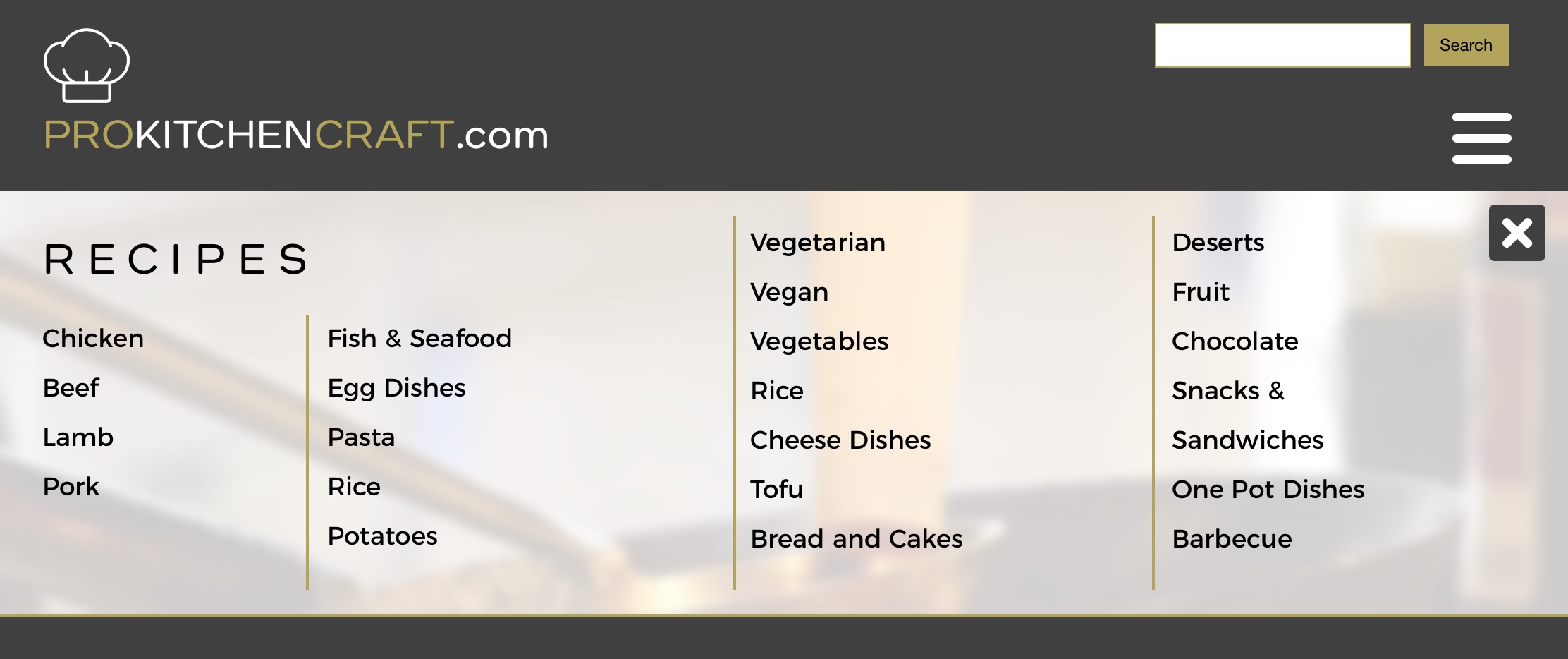
Here is the page with the Techniques mega menu selected (links yet to be added) - it’s in exactly the same position as the previous menu.

When selecting different options, the user sees the popup fade in. When they select another option, the next mega menu fades in, replacing the first popup. This arrangement keeps things clean and tidy and doesn’t clutter the page.
OK, wow, I missed the key point that one has to first select the specific (menu) Popoup in the Pages Panel.
Another question if you please. How does one set up html compression for Sitely Publication?
Thnx
1 Like
Please also note that screenshots could benefit with all Sitely canvas details. Tech support is clearer with more detail of the top Sitely.app detail missing in your helpful screenshot above, copied here:
Of course your work is a beautiful example for the restaurant sector.
1 Like
As far as I’m aware, there is no need to worry about html compression when publishing. Sitely takes care of all that as part of it’s in-built publishing process.