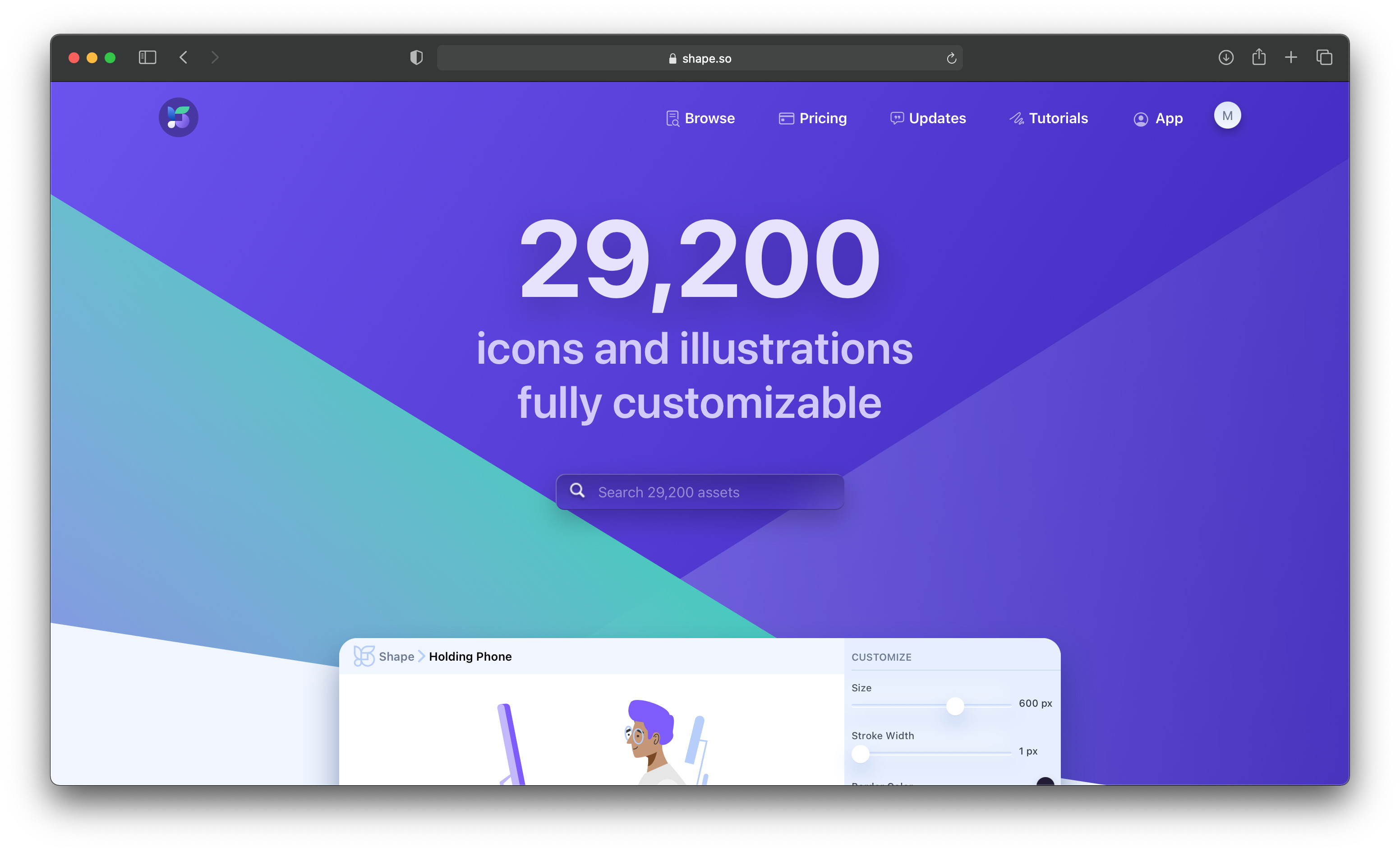
Essentially, the Google Search for color palettes. Enter any search term and Vangogh will use millions of images to generate the perfect color palettes.
Try it with the word “love”!
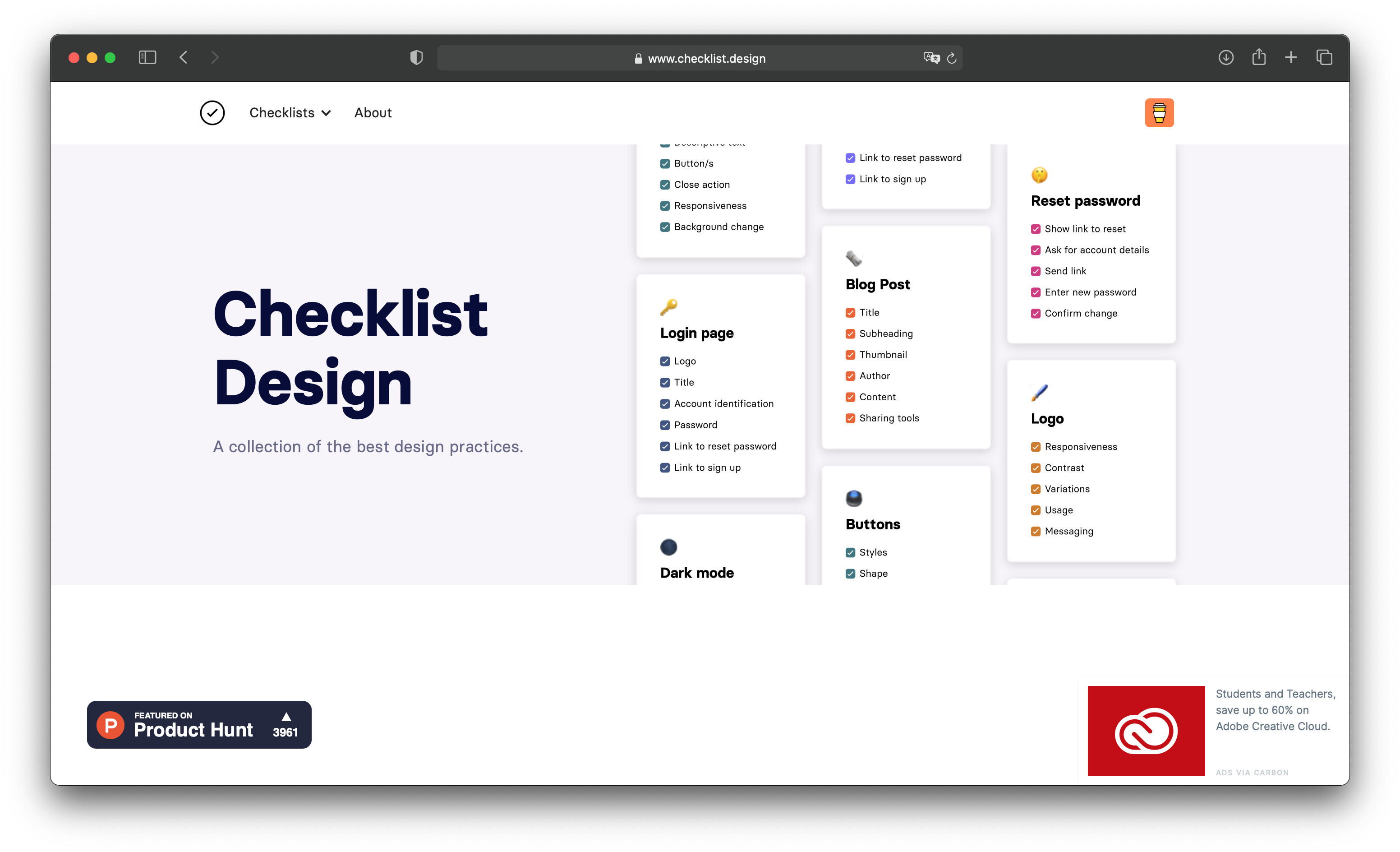
Quite literally a checklist for anything design-related. Are you creating a blog page and not sure that you’ve got everything in place? No problem - checklist.design is there to help.
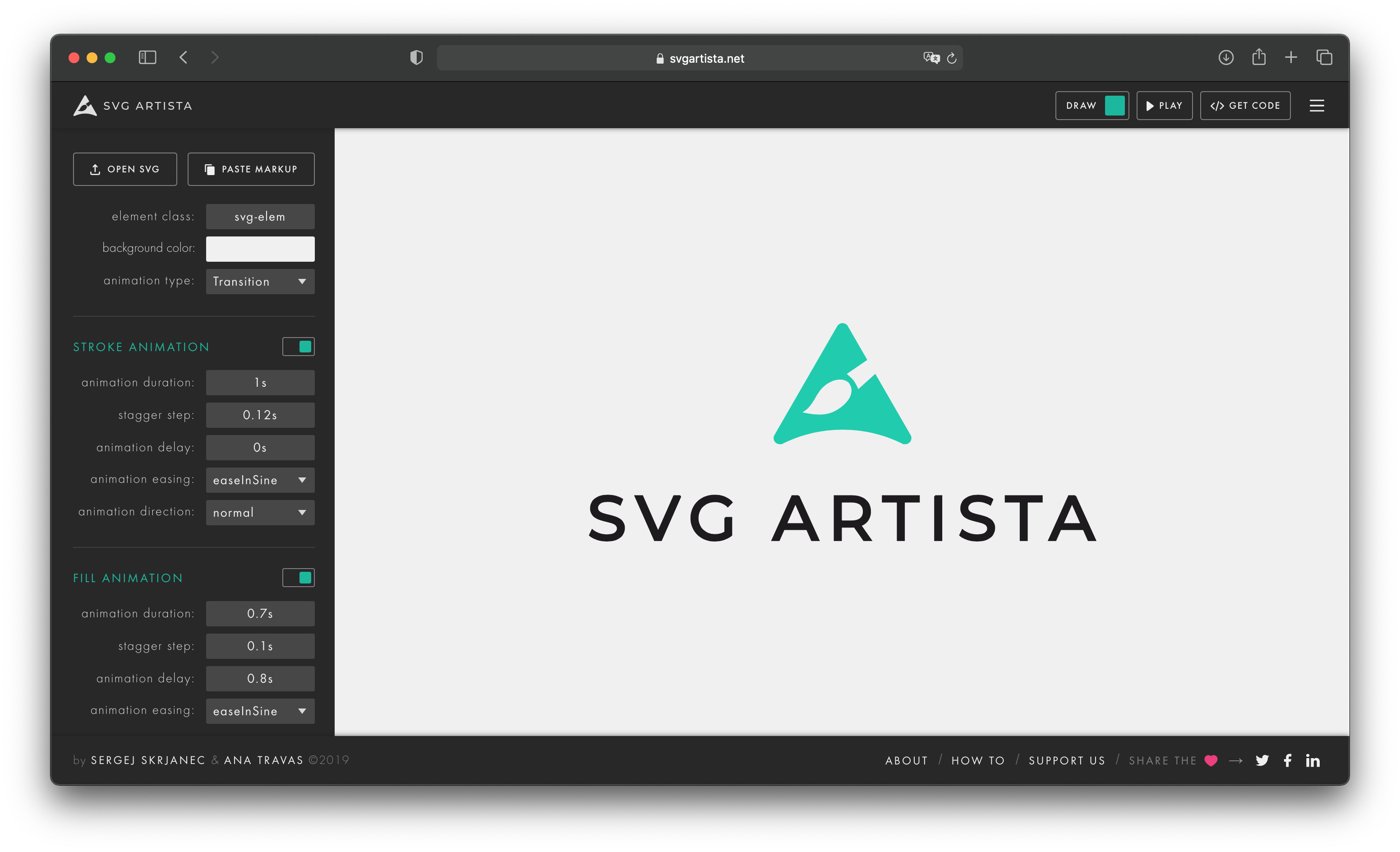
This lets you create a loading animation using your logo (or any other SVG) in about 2 minutes. Customize the fill and stroke animation, grab it then paste in Sparkle!
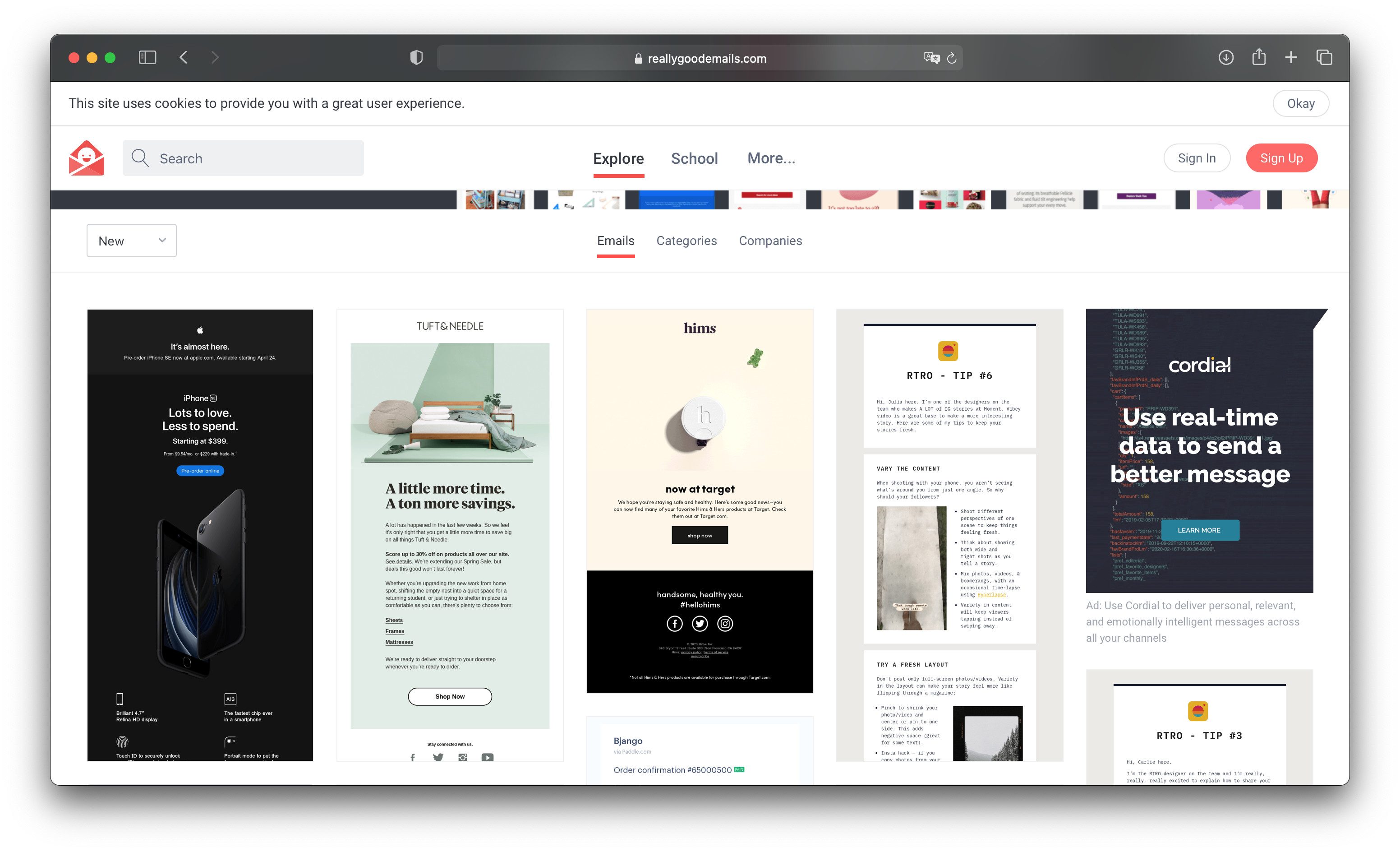
I know that a lot of you have (or plan on having) an email list. Many of us are just getting started with email marketing and still finding our bearings, so I had to share this amazing inspiration resource.
Share screenshots in style with this minimalistc mockup generator. Whether it’s web or mobile, Cleanmock has your back. And you can customize the background color as well.
Do you have a workflow to integrate the SVG Artisa files into Sparkle?
Animated SVG’s from SVGgator seem to embed and run without issue but I’ve played around with the files SVG Artisa puts out and it never seems to render an animated image. My animation is working in SVG artisa
Have you got this one working in sparkle? Thanks
Very nice, thanks for submitting:)
Though I need a further hint please:
Artista files: I’m wondering about “grab it then paste it in Sparkle”: Do you mean the Sparkle embed-box? Cannot figure out exactly what you mean …
Tried to read the how-to-instruction which makes no sence to me as such: “In case of an intro animation, you can simply assign the active to the SVG on page load event.”
I removed my reply to you backing up what you said and asking others for advice, I have it working now.
You make two “embed” boxes on your canvas;
In either box you copy and paste the code from the “SVG Code” into the code window. Save/Refresh button on the widget screen.
Copy and paste this into the code window of the other embed box, make a new line in between the two tags by hitting return after the first line ;
<style>
</style>
Go back and copy the “Animation Code” and paste it in-between the two tags above.
Save/Refresh button on the widget screen. and that should be it working.
Linked is a sample sparkle file of a working animation from SVGartista
One tool I can thoroughly recommend for anyone doing web design is the free Affinity by Canva application. Its an all-in-one application that combines Photo Editing (Photoshop alternative), Vector creation/editing (Illustrator alternative), and Layout creation/editing (inDesign alternative). Why this particular app??? Although its a graphics app, it has a very useful place in web design. Things like creating transparent PNG’s, Converting JPG logos into scalable vectors (SVG’s), Opening and editing PDF files and exporting individual elements of those files in a wide range of formats, are all useful tools when it comes to designing web page content for use in Sitely.
Another really useful feature is the app’s ability to create colour system palettes from images - Just drag in an image (maybe an autumn landscape, or a screenshot of a webpage you particularly like) and the app will automatically create a colour palette from the image. Furthermore, it will allow you to limit the number of colours generated to say maybe 5 or 6, which can then be saved as a system palette ready for use in Sitely. Here are a couple of examples:
If you want to make a more striking hero image for your web pages, you can create shaped images with ease. Things like this are very easy to create and export:
The page layout option is also a great option if you want to create traditional documents for displaying in your Sitely web pages. Now that Sitely fully supports PDF files in it’s gallery elements, you can embed PDF files into your project at a small size, and have them open for reading in a lightbox. There are many use case scenarios where you may want to do this. Here is an example of a recipe page in a website where users have the option of viewing a recipe or downloading a printable version.
Having a tool that can create such documents is a very useful addition to your design toolbox.
The app is currently free to download and use - the developers say it is free to use forever - but you never know what the future may bring, but for now - it’s a good option if you want an easy to use application for creating website assets.
I started using Affinity when Adobe switched over to its expensive subscription model - I bought the whole Affinity Suite for about €49 which was incredible value for a lifetime, multi device, multi OS licence. The new free version is, in my opinion, even better because all three Affinity apps have been rolled into one - making it super simple to switch between photo editing, vector drawing and page layout. I now use the original version on my Windows system and the free version on Mac OS - couldn’t live without it.
You probably know, but I wanted to write it anyway. If you purchased an Affinity license before Affinity became free, Affinity is giving away a FontSmith collection of 442 fonts.